
Install the Extension
Go to Autodesk Forma online and open a project. It is currently recommended to use the Chrome Browser as other browsers may not be fully compatible. If you have view access only, you may need to join a project in your hub to get editing permission (please check if the project is locked or contact the project owner for access). Click on the ‘Extensions‘ icon. There are several ways to access this: (1) either on the left hand side toolbar, (2) on the main building modeler toolbar or (3) in the analyses options on the upper right of the screen.
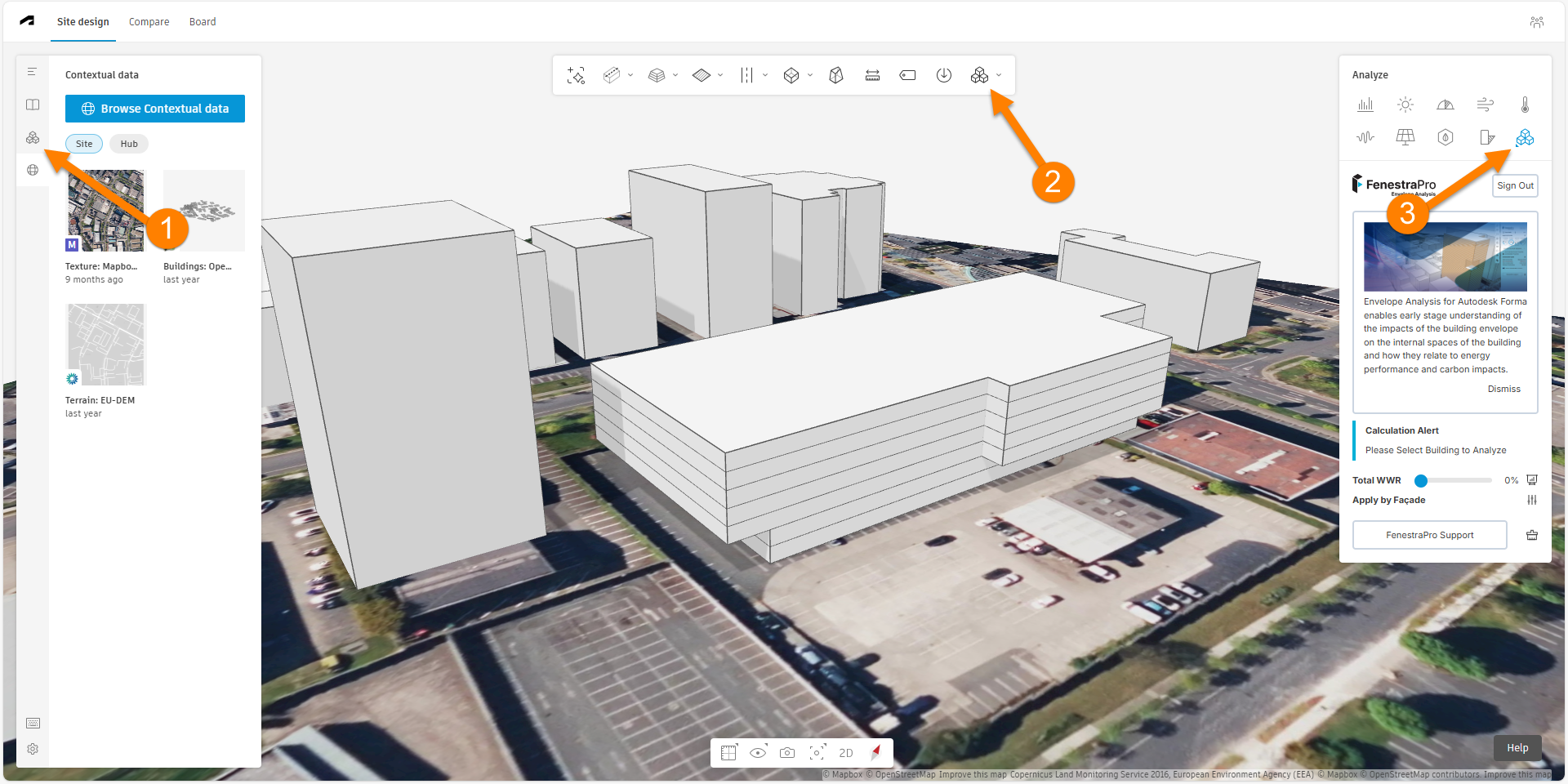
Then click on ‘Add Extension‘.
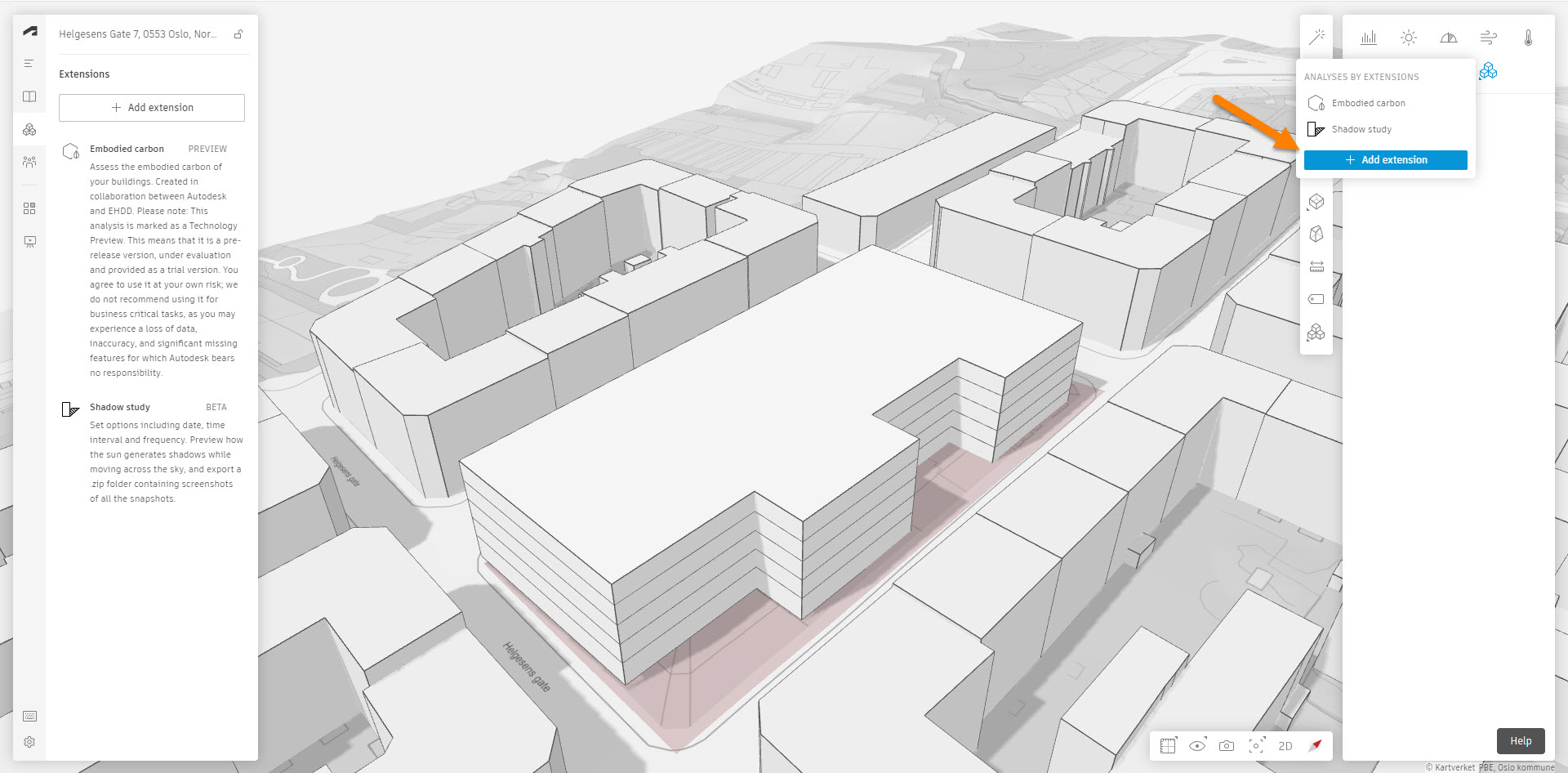
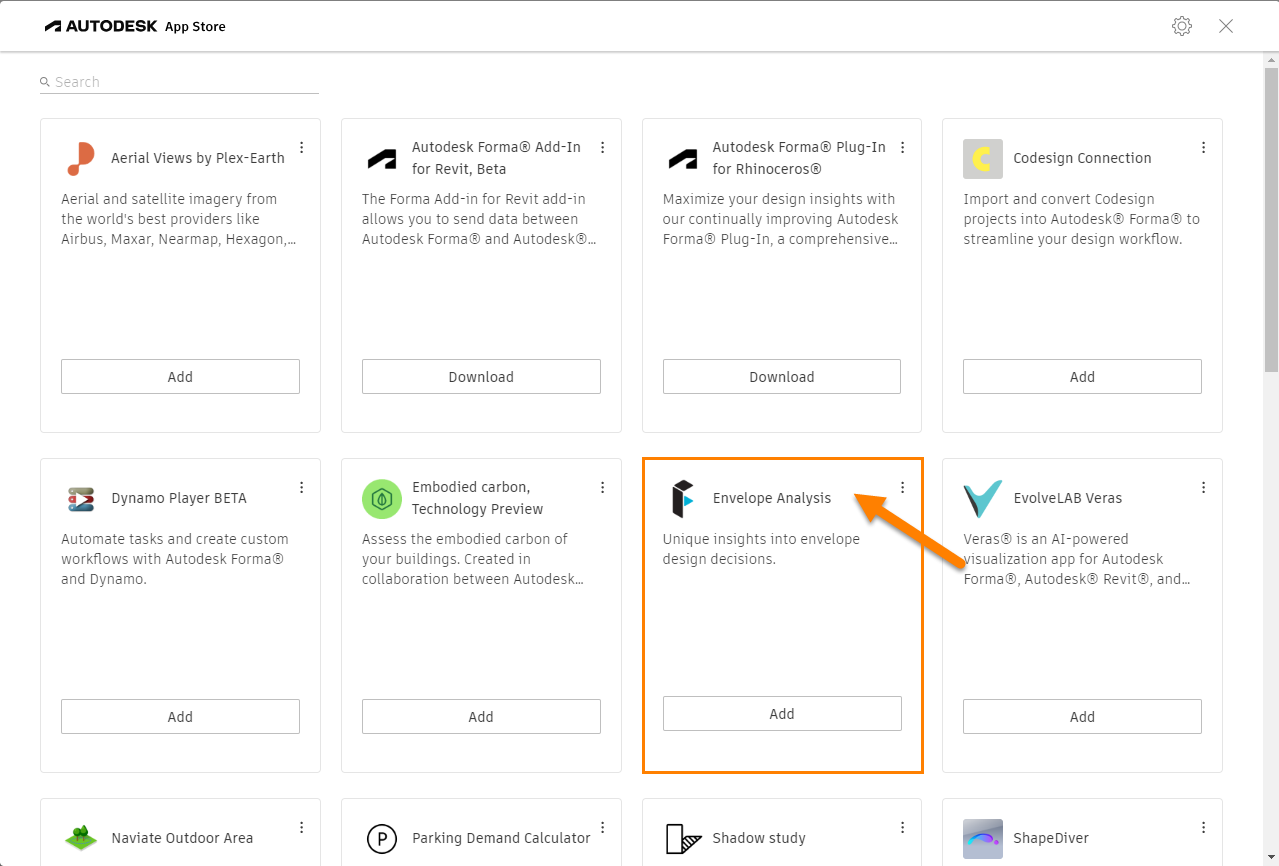
Find the FenestraPro extension in the Autodesk App Store and click on the Add button. Agree to the terms of use and then close this window. Refresh your browser to update your Forma screen with the new extension.
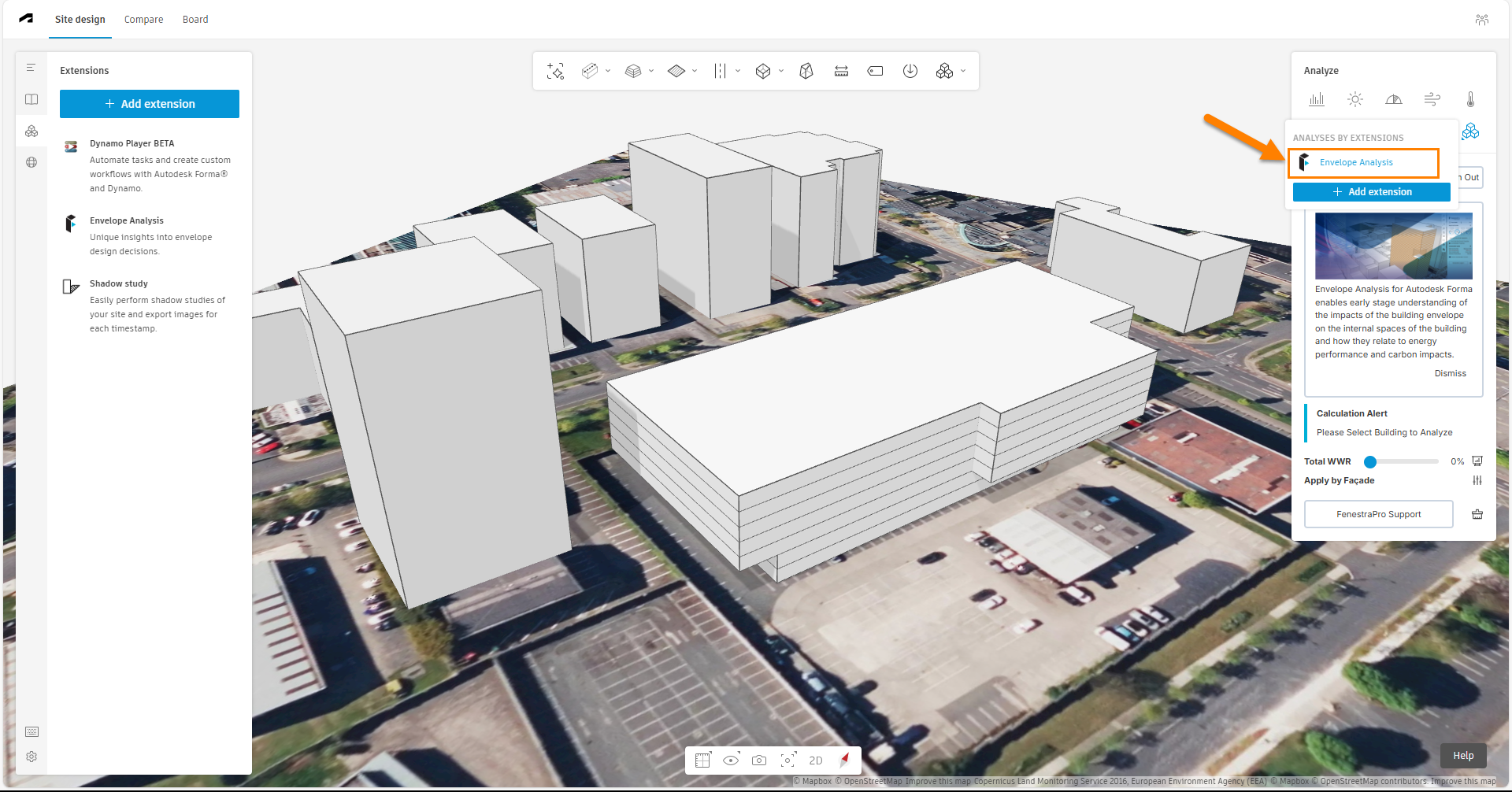
When you hover over the extension option now (‘Analyses by Extension‘), the FenestraPro extension should be listed (among others). Click on the extension to load it into Forma and it will display in the panel below.
When the extension loads, there is an information panel. You may review this and close the panel if you wish, using ‘dismiss‘. There are also buttons to link to this Support Page.
Creating an Account
If you are not already registered, you may create an account. This ensures that you will have access to all features for a limited time (30 days). Options will then be displayed for subscription options.
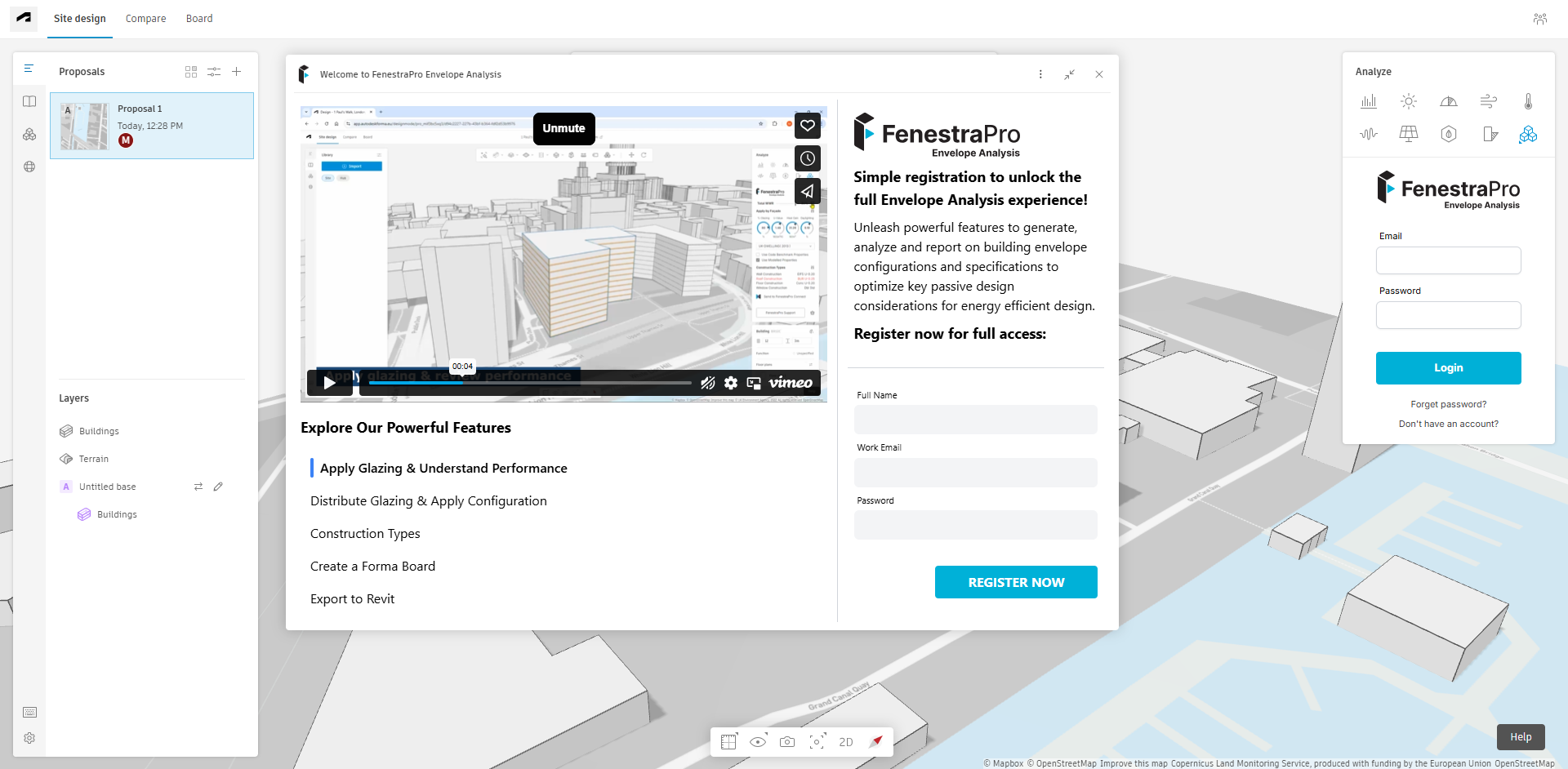
Registering allow you to use Facade controls, create custom constructions and configure windows.
Please Note: If you also wish to get a 30-day Trial of our Revit Add-in FenestraPro for Revit and wish to use connected workflows (export your Forma project to Revit), please use the same email address when signing up for each license. The Forma extension and Revit Add-in are separate licenses but for convenience, you may use the same email and password for both. You must create accounts for each application separately however. You may of course apply for a second Trial if you have used different email addresses and wish to avail of the connected workflows. If you need assistance, contact us (support@fenestrapro.com) and we can adjust your login details if required.
You must first have access to Autodesk Forma in your browser (this can be arranged with Autodesk by adding it to your ‘Products and Services’). Once in Forma, you can add the FenestraPro Envelope Analysis extension using the ‘Extensions’ area in Forma (see the guidelines above for installing). Once the FenestraPro Extension is opened in Forma, you will see the option to register for an account.
The following explains what you will see in the Forma application (once you have installed our extension):
Click on the ‘Don’t have an Account?’ button and fill in the details and once complete, create an account by clicking on ‘Register Now‘. Registration is free and you can continue using projects as before if you have used the extension already.
Then Sign into your Account. In future, this will ensure that your settings will be saved and any future features which require user storage will continue uninterrupted. If you forget your password, click on ‘Forget Password?‘ enter your email address that you used to create the account and a temporary code will be emailed to you. Enter this code in Forma when prompted along with a new password. Then sign-in with your new password. Note: Please make sure if you are copying and pasting the code that is sent to you, that you do not copy or enter any additional spaces at the end of the code, since this may cause an error.
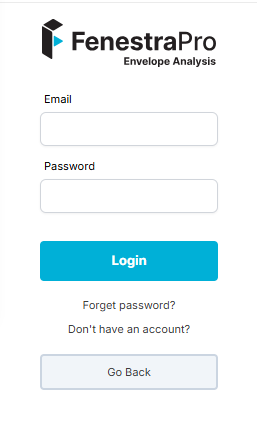
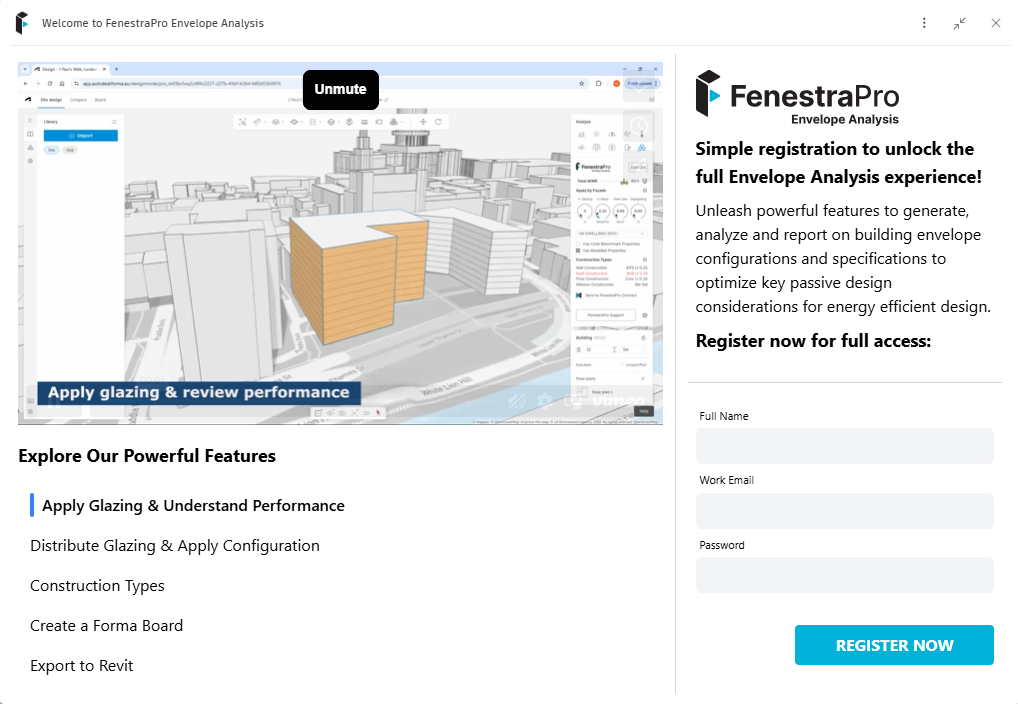
If you do not have an account, you may register one by clicking ‘Don’t have an account?‘ Simply enter your full name, email address and create a password. You will then have a 30 Day fully functional access to the extension.

Subscription options (as of June 2025)
Certain features in Envelope Analysis for Forma are free (Overall Glazing Percentage, Code selections and updated Results with Shade Geometry).
When you register for a Trial, full functionality is provide for a limited time. This will ensure that your current model settings saved. If you leave the application, close out of Forma or return to the model, the last settings and results will be regenerated. When the 30 Day period of full functionality expires, a paid license subscription is available (as outlined below).
The application also has features which are restricted to a subscription license:
- Define WWR for each Facade separately
- Highlight and Identify Facades
- Generate Window Configurations
- Review Facade Charts & save as Insights to Forma Boards
- Change Construction Types
- Create Custom Constructions
- Export to Revit (using Connect to convert geometry to Revit elements)
When your Trial period has expired and some features are clicked, an advisory window will display to provide options for subscription. Note: specific features may change or be updated/improved in future releases.

