This version can be downloaded as a BETA installer and will support Revit Versions 2025 and 2026. It is recommended to use this version for testing functionality and workflows only, outputs are subject to change in the full release version, coming soon.
Release Notes for v9.0.5 Beta (March 10th 2026) for Revit 2025/2026
Support for Revit 2026 included
Improvements and extended functionality
Fix for cache in Thermal Performance tool
Custom Glass import function added
Support for sending model data to COMcheck-web
Shading support for high altitude models added
A current license is required to use the software. Fully functional 30-day Trial licenses for the Revit Addin are available here for assessment: Trial License
If you wish to purchase a monthly license plan for single or multiple users, these options can be reviewed here: License options
If you require a custom Trial License for multiple users in your company, or you require a demonstration, please contact us: support@fenestrapro.com
Please Note: If you also wish to get a 30-day Trial of our Revit Add-in FenestraPro for Revit, and wish to use connected workflows (sending your Forma project to Revit), please use the same email address when signing up for each license. The Forma extension and Revit Add-in are separate licenses but for convenience, you may use the same email and password for both. You must create accounts for each separately however. If you need assistance, contact us (support@fenestrapro.com) and we can adjust your login details if required.
Changing / Deleting your License Key
If you have had a previous license for FenestraPro for Revit and wish to use a new license key you may need to delete the existing license file on your machine. For instance, you may have had a Trial or Student license and are now being added to a company license. You may manage this using the following options:
Uninstall the existing FenestraPro for Revit application and then manually delete the application folder which remains. If you have access permissions (you may need to check with your Manager/IT Department), you may navigate to the application folder and delete this folder. Typically, the path to the application folder will be: C:\ProgramData\Autodesk\ApplicationPlugins\FenestraProPremium.bundle. If you have already uninstalled the application, you may safely delete this folder (which will contain the license file). A new folder will be created when you install the application again. You will be asked to enter your new license key when you next log into the Addin in Revit.
Alternatively, if you do not wish to uninstall your current version of FenestraPro, you may open the folder: C:\ProgramData\Autodesk\ApplicationPlugins\FenestraProPremium.bundle\Contents\Source and find the file: fprolicense.lic and delete this. When you next log into the application in Revit, you will be asked to enter your new license key (serial key) that was provided to you.
FENESTRAPRO 8.1.4 Beta October 31st 2025 (Revit 2025 Only)
This version can be downloaded as a BETA installer and will support Revit 2025. Note: This is a standalone version and will not work for earlier Revit versions (2024/2023 etc).
If you already have version 7.1 for earlier Revit versions, this should first be uninstalled on your computer before installing version 8.0 (as It is not currently possible to have both versions installed on the same machine). You may have version 7.1 installed on one machine and version 8.1 installed on another machine if your license allows (Trial versions however may not support this). You may always reinstall version 7.1 after using v8.1 if necessary (by uninstalling version 8.1).
Release Notes for v8.1.4 Beta (October 31st 2025)
Supports Revit 2025
Includes Thermal Performance Tool and Carbon Benchmarking
Separate EAM Check Tool to fix missing element properties and model issues
Connect Tool for importing a model from FenestraPro Envelope Analysis in Forma
Improvements to Connect import (levels centered around model)
The Conceptual Tool has been retired (as an alternative, FenestraPro Envelope Analysis is available for Autodesk Forma) Support Page HERE
Fix for displaying glass types in reports
If version 7.1 is already installed on your machine, please uninstall this before installing v8.1
FENESTRAPRO 7.1 (for Revit 2024/2023)
This is a release from April 2025 and supports Revit Versions 2023 – 2024. Older Revit versions (Revit 2022/2021) are no longer supported as they do not have the required libraries to facilitate all the latest features provided.
There are tools in version 7.1.9 for both Detailed and Conceptual models as well as tools for advanced Glazing Analysis and Carbon Analysis. (The Concept Tool is supported in Revit 2023 along with the Detailed tool. Revit 2024 does not support the Concept tool).
Note: For existing users of FenestraPro, close any Revit sessions first, then uninstall any existing versions on your computer before installing the newer version. Note: You may require IT assistance or administrative approval if there are firmwide restrictions on users installing software.
FenestraPro Version 7.1.9 (April 22nd 2025)
Release Notes for 7.1.9 Version:
Supports Revit versions 2024 & 2023
The Concept Tool is provided for Revit v23 and v22 but is not supported in Revit 2024 (due to changes in the Revit API)
FenestraPro now has an extension to analyze models in Autodesk Forma (where concept/schematic models may be created and imported to Revit)
Silent Installer option built in
Revit 2024 Toposolid not yet supported
Carbon Analysis Tool (beta March 2024)
Improvements for Glazing Percentage calculations
Fix for web service menu button link
7.1 INSTALLATION
FenestraPro v7.1.9 supports Revit versions 2024, 2023 and 2022 (older Revit versions do not have the required libraries to facilitate all the functions and features provided).
Note: The Concept Tool is only supported in Revit v23 and older. Before installing the software, please close any open Revit sessions that you are using. It is recommended to uninstall any previous version of FenestraPro. Once this is done, double click on the installation file (that you downloaded) to install the application on your machine. The software will then appear as a new icon on the Revit menu. You will require a subscription license to use the software. Once installed, the Add-in will appear in Revit but you will not be able to sign in and use it unless you have a current license. Please visit our website if you are interested in purchasing a license or contact us using support@fenestrapro.com.
Trial versions (no restrictions) are also available for 30 days use if required – please see here: Trial Version
Existing Users with a current license subscription will be able to continue using the same license (as your current installer is being upgraded to a newer one). If you have received a new license key and previously had a different license key, you will need to delete this file from your computer. Please refer to the instructions above.
Note: Windows Defender SmartScreen may show a warning on your desktop to confirm the installation – you may click on ‘Run anyway’ to proceed. This is a normal security precaution in Windows.
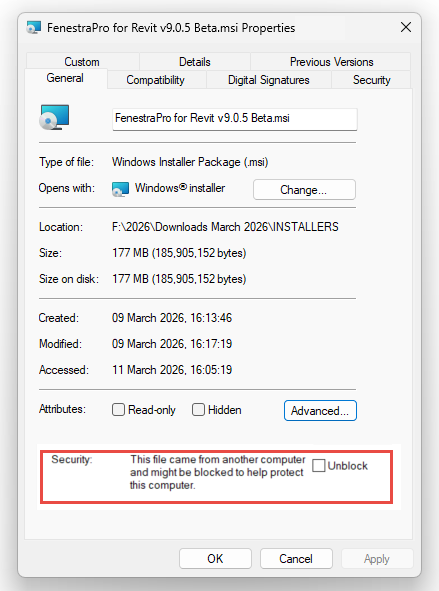
Alternatively, to avoid this, after downloading the file from the website, you may browse to the file location (eg. Downloads folder), right-click on the file and choose Properties.
A new window will open where, in the General Tab, you may check Unblock. Click Apply and OK to close this window. You may then install normally without any security message from Windows (the sample image shown below is for instruction only and may at times be different to the latest version).
Unblocking the Application before installing (optional)
If you wish to install an older version of FenestraPro and your existing installation is more recent, the more recent version should be uninstalled first. Older versions may always be upgraded to newer versions on your machine. If you have a current license subscription, it will continue as before. You will not need to input the serial number in the new version. If you have any issues with the installation/license, please contact us at support@fenestrapro.com.
Note: Any models which have previously been used with an older version of FenestraPro will need to have results re-calculated and any properties or options set in a previous (uninstalled) version will be lost.
The installer file may also be used as an unattended installer where a command-line utility may be used. The Application may then be installed on several machines without users having to input any serial number when opening FenestraPro. Please contact us directly for instructions if you require this.
FenestraPro includes the Glass database with products currently from both Guardian or Vitro Glass and some Viracon entries. FenestraPro will need to write to the file which contains the Construction Types in Revit. By accepting the terms of the License Agreement, consent is given to allow FenestraPro to add additional entries to this list so that they also appear in Revit.
Note: If the Constructions.xml file is manually modified and then saved after FenestraPro is installed or if another version of the file is substituted at any time, writing of the new Glazing Types from the Glass Database may stop working as the new file may not have the permissions necessary to allow editing. This may be resolved simply by re-installing FenestraPro. Exporting Reports (Snapshots) may also fail if permissions for this Revit file are reverted to read only. If you have issues with this, please contact us for advice as some practices may have restrictions on file permissions.
Alternatively, while security permissions may be manually set for this file, this is an advanced process and is recommended to be done by those with sufficient competence and authorization. Please contact us if you require assistance or advice.