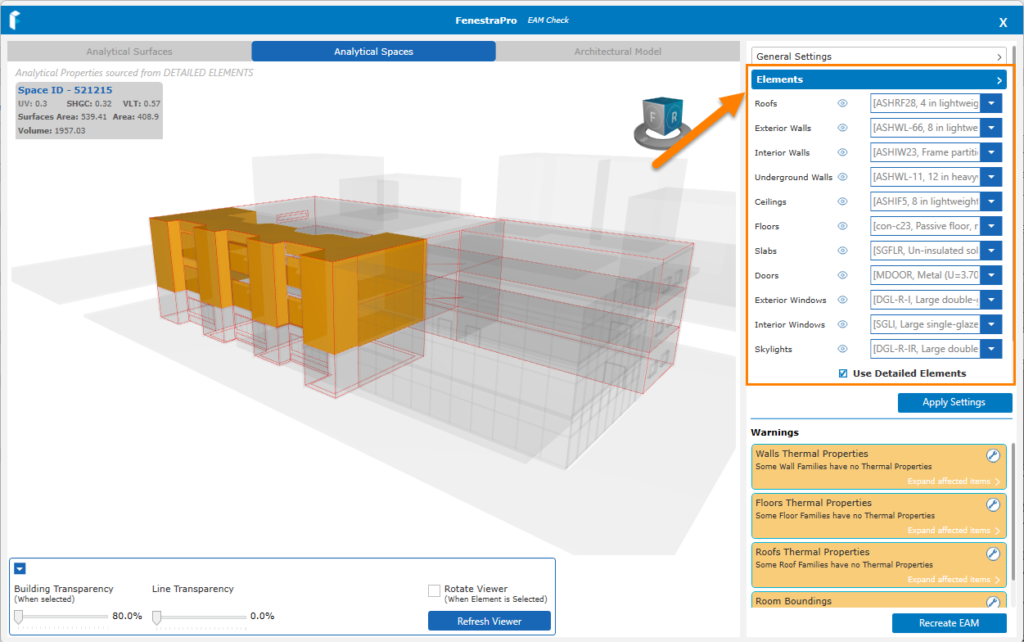
When the EAM Check tool is launched, issues that can be reviewed are:
- Room Bounding issues
- Missing thermal properties
- Missing Energy Surfaces/Spaces
- Revit Settings (Energy Settings, Ground Plane, Project Phase, Analytical Resolutions etc)
- Default Schematic values
- Incorrect Element Functions (Interior/Exterior Walls), Floors used as Roofs etc
Warnings may display for the following reasons: Room Bounding issues and missing thermal properties.

Each warning has an option to expand the list and a wrench icon to ‘fix’ the issue. Expanding the warning to view more details will list the affected element/Revit family. You can manually review this in Revit and adjust the settings to resolve issues or use the wrench icon in the application to fix the issue. Clicking on the wrench icon will display a message for the family with issues.
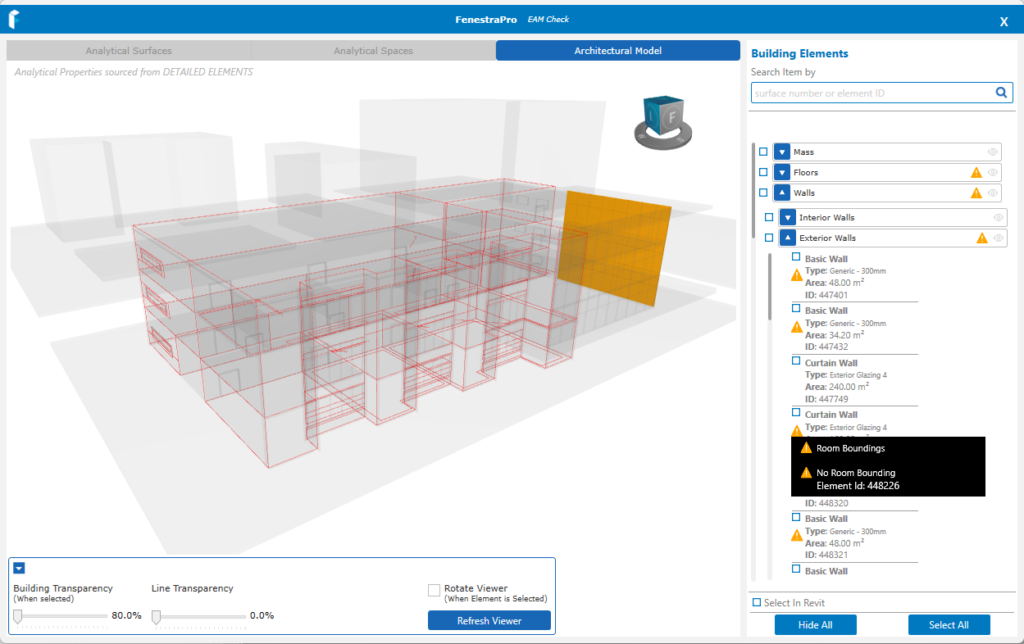
Note: More details on warnings can be reviewed in the Architectural Model View (tab at the top of the viewer). Expanding the list here will may reveal triangle warning symbols and hovering over the item or selecting it will highlight elements in the viewer with possible issues.
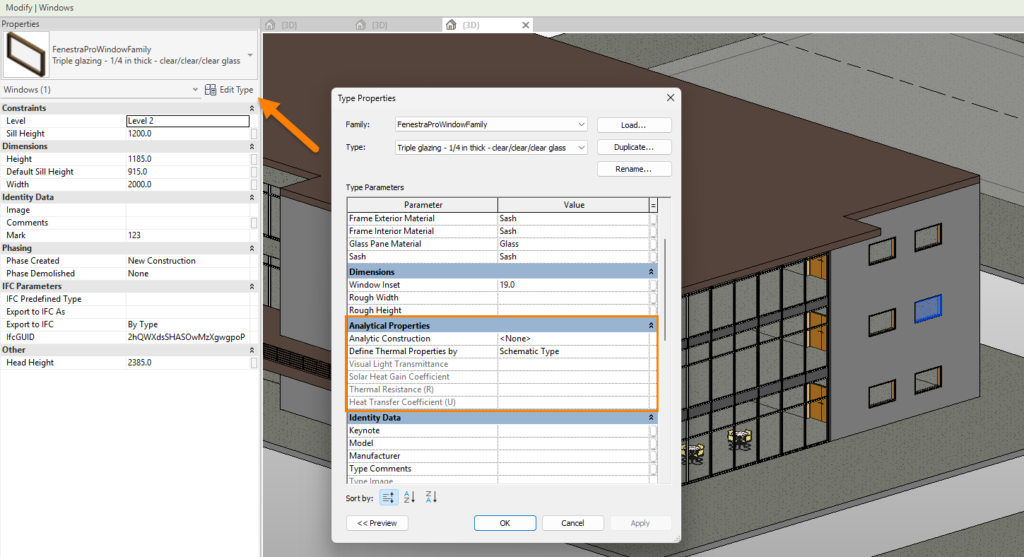
Missing thermal properties will be reported if analytical properties have not been set for this family in Revit. This can be checked by selecting the Revit element and using Type Properties/Edit Type. For glazed families, this can be resolved by selecting a glass type for the family under ‘Analytical Construction’. Instead of ‘None’, a glass type should be set here. Each glass type has performance properties and these will affect the results in FenestraPro e.g. The SHGC property will affect Heat Gain and and the VLT property will affect Daylighting results. The U-value of the glass will affect the Facade Performance results.
For solid elements (walls, floors and roofs), the construction assembly of that Revit family should have layers with thicknesses, and materials with thermal conductivities defined. Missing thermal properties can be resolved by defining assemblies.

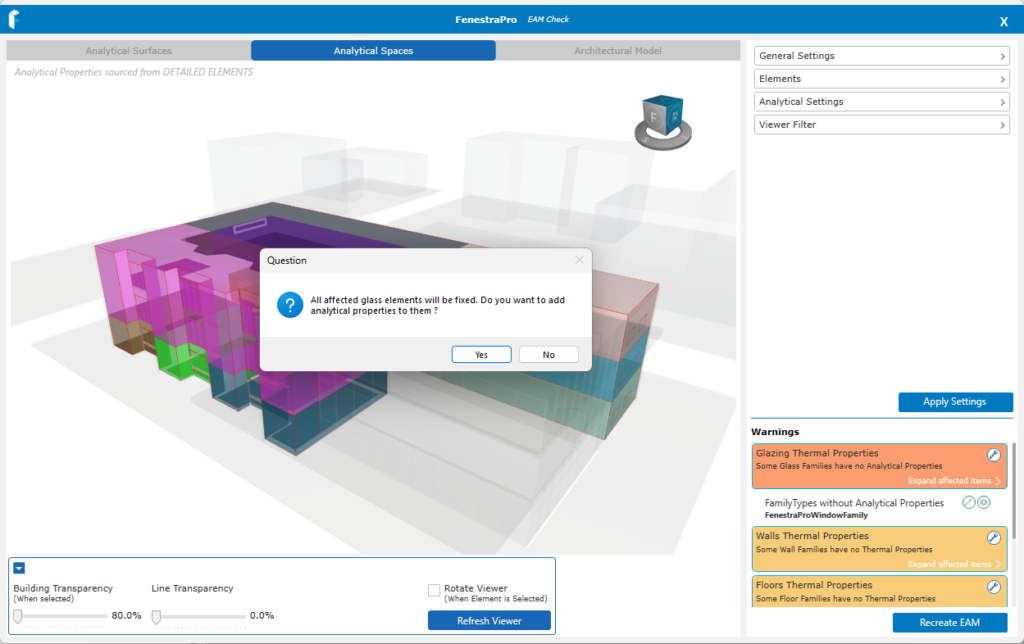
If there are warnings for glazed families, you may choose to assign a default glass if properties are missing. A default glass will be assigned will be used(there is no option to choose a glass type as this is automatic). The same Revit glass is used each time (Low-E double glazing (1/4 in + 1/4 in), SHGC=0.65, VLT=0.76, U-value=1.9773 metric)
- Click Yes to proceed and the application will assign a Revit glass to that family. This will ensure that these elements model wide will get results.
- If you wish to manually review these issues and assign properties in Revit, you may click No.

Schematic Types
Another option to resolve missing properties is to use schematic types in Revit. FenestraPro provides access to these in the EAM Check application. You may define which types to use as a backup if there are no analytical properties defined in Revit.
How this works depends on a setting in Revit. Revit uses a hierarchy system of priorities so that if analytical properties exist, these will be used. If these are not present, it can use schematic types but only if overrides for these are turned on. FenestraPro can also read schematic values and provide results using these properties. When the EAM Check tool is launched, it will turn on schematic overrides in Revit to allow for these backup values to be read. In the application, you may also define the schematic types to be used for each element category and these will then update in Revit. These can be found under ‘Elements‘ in the application.
If any changes are made to these settings, the Apply Settings button should be used, then Recreate EAM (Energy Analytical Model) to update.