
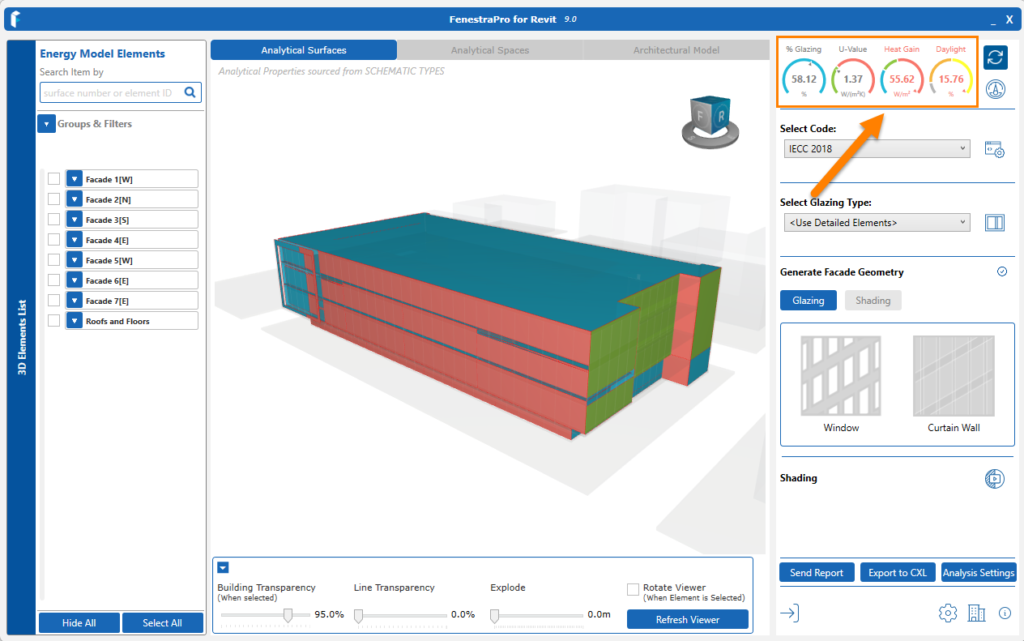
At the top of the main window are summaries of the current results for selected areas .
Values will display in relevant units according to the project units set in Revit (metric or imperial). There is no need to set units in FenestraPro, as these will be identified automatically from the Revit model. There is also an option to change the output units independent of the Revit model units (see the Settings article).
The Glazing Percentage, U-value/R-value, Heat Gain, and Daylighting results are shown for the current Surfaces and Façades selected.
U-value / R-value on the Dashboard relates only to Facade elements (excluding Roofs and Floors). In the Codes area, Roof and Floor inputs are used however to check compliance with a selected Code/Building Regulation. All roof and floor elements in the Revit model are included when checking compliance (even freestanding walls, floors with properties which may be used as balconies or roof structures without wall enclosures etc. Therefore it is important to be aware of all elements in the model which may influence these results. More information on this may be found in the Codes article.
Note: It is important that properties have been set for all elements in the Revit model so that the results can calculate Facade Performance. Walls, Floors and Roofs should generally have thermal properties assigned in Revit or these may be defined using the application (as overrides). Glazing and Wall values will determine the results for the R-value or U-value on the Dashboard (Facade Performance).
Glazing elements should typically be assigned a construction type also with associated thermal properties for U-Value, SHGC (solar heat gain coefficient) and VLT (visual light transmittance). Walls (solid walls and curtain walls) that are external should have their function set to ‘External’ in Revit.
Walls that are set to ‘Internal’ will be excluded by FenestraPro. Glazing material, if assigned, should have a minimum transparency set in the materials browser, to be identified as glass. Please see Model Preparation section for further information.

