
These are general settings for FenestraPro when using the application which have useful features such as having the application stay on top of Revit, logging of errors, model unit preferences (converts outputs) etc.
Settings are accessed using the wheel icon from the Toolbar.
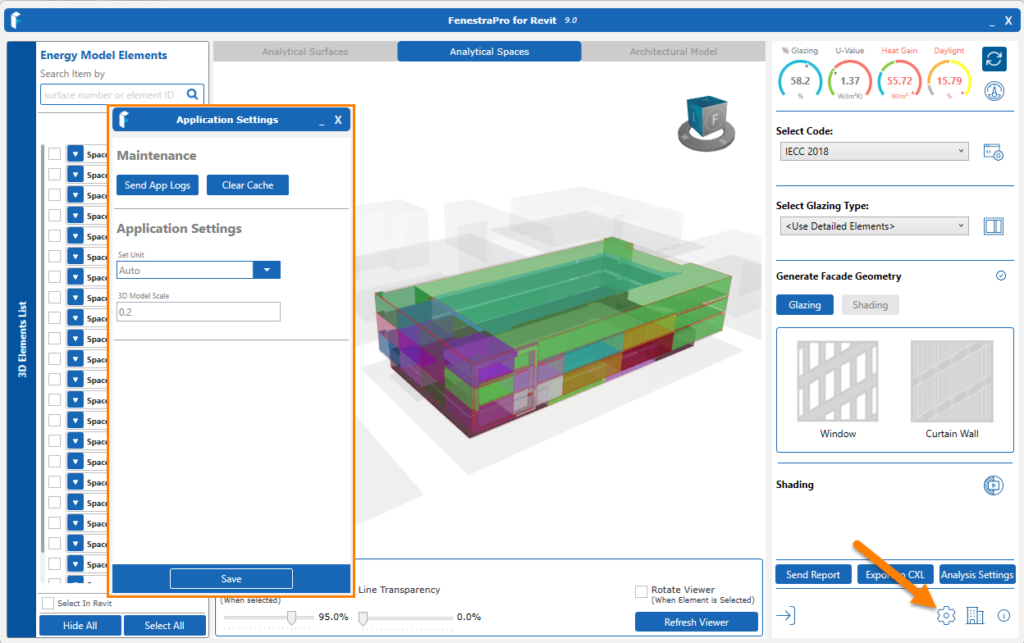
Settings may be accessed here

You may also choose to log minimal events or if you are having issues, you may turn on Complete Logging to get more details. You may need to restart the application after changing settings for this to take effect.
Convert Units
There are options to convert the output from imperial to metric units or vice versa under Application Settings. You will need to restart the application but you may choose Continue on the launch window (without a new energy model). There are also settings for bounding box tolerance if there are modeling issues and the surfaces are not fully displaying or getting complete areas. There is also a setting for Minimum Render Count which may help if very complex models take a long time to display in the Viewer.
Support & Troubleshooting
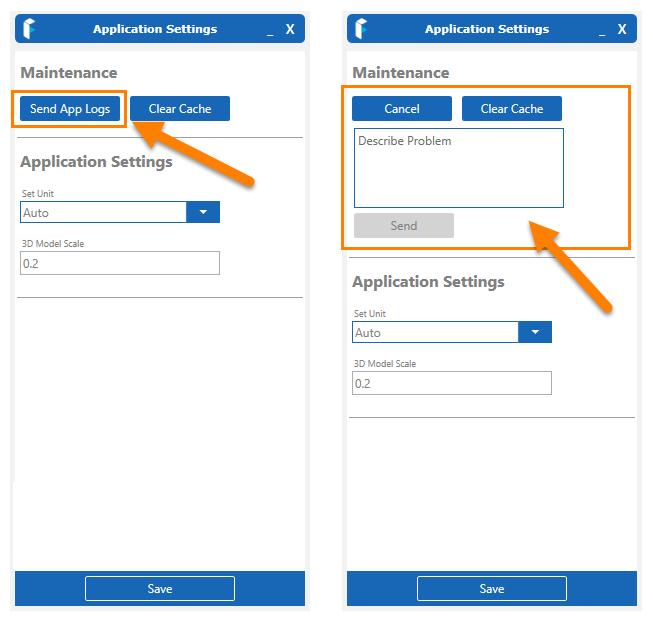
To help us continue to improve our software, Error Logs are generated automatically if any issues are experienced during a session with FenestraPro. Users can send these to us, using the Settings button in the toolbar at the bottom of the main window. Click on Send Report and fill in the description of the issue if you wish.
When you send an Error Report, the Log files are also sent to us which help us to understand when the event occurred and what is the cause of the issue. Logs may also be requested by our support team and may be found in the relevant folder:
C:Users\<YourName>\AppData\Local\FenestraPro (Revit 2025/2026)
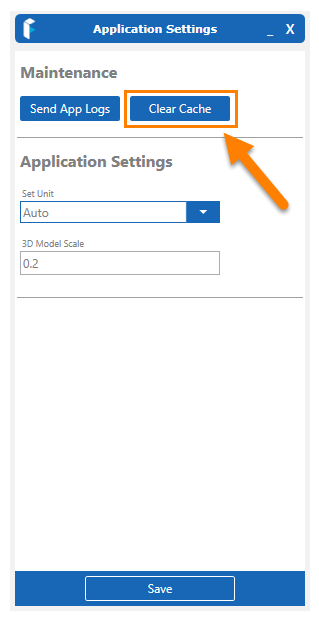
There is also a button to Clear Cache files if required. You may be advised to do this by the Support Team. These are stored settings from recent project activity (glass types used, where windows or curtain walls have been added, reports saved, results etc). Sometimes it may help to delete these if your results are not changing as expected.
Contact Us
You may also send a message to the FenestraPro Support Team if you are having issues. Under Maintenance, click on Send Report. This will send an email to the support team with the log files of recent events that will help to diagnose the issue. You may also include a description if you wish.
3D Model Scale is used for Shading settings and should not normally need to be adjusted.

