In the EAM Check tool, the Elements section provides access to the schematic types in Revit. Modifying these settings will update the overrides in Revit.
Revit uses a hierarchy system of priorities so that if analytical properties exist for families, these will be used. If these properties are not present, it can use schematic types but only if overrides for these are turned on.
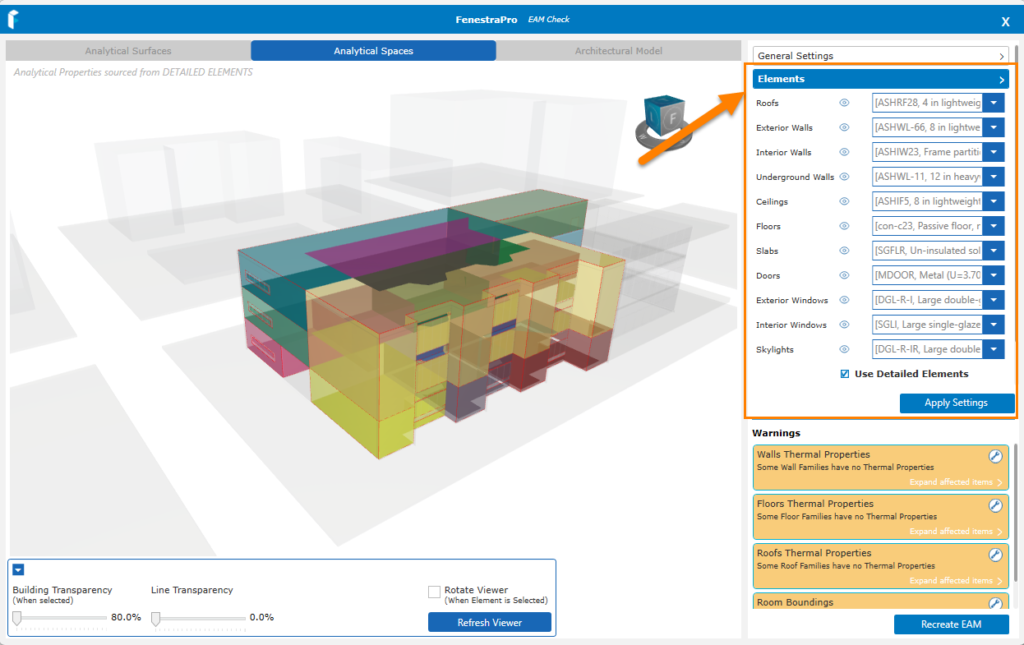
FenestraPro can also read schematic values and provide results using these properties. When the FenestraPro EAM Check tool is launched, it will turn on schematic overrides in Revit to allow for these backup values to be read. In the application, you may also define the schematic types to be used for each element category and these will then update in Revit. These can be found under ‘Elements‘ in the application.
If any changes are made to these settings, the Apply Settings button should be used, then Recreate EAM (Energy Analytical Model) to update.
Revit Logic
- If analytical properties are present for a family, Revit will use these properties for energy analysis (the ‘Detalied Elements‘ setting in Revit must also be checked).
- If there are no analytical properties present for a family (and the ‘Detailed Elements‘ setting is on), schematic values that are defined will be used as a backup (only if the schematic override has been turned on for this category).
- If the ‘Detailed Elements’ setting is not checked, values in schematic types are used instead (only if the schematic override is checked for that category).
- If the ‘Detailed Elements’ setting is not checked and overrides are not set for schematic types, Revit will not report any properties for this family.
FenestraPro will follow this same logic in the application.
Revit Settings
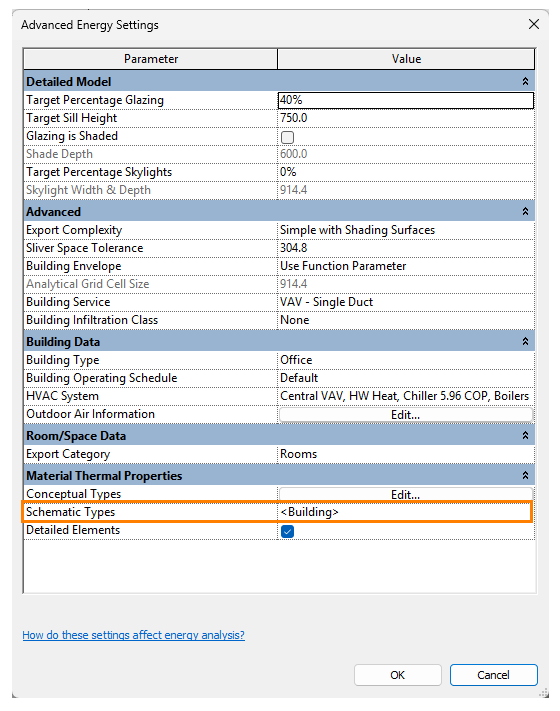
Under the ‘Analyze’ settings in Revit, under the Advanced Energy Settings area (Material Thermal Properties) there is a setting to check or uncheck ‘Detailed Elements’. If this is checked it will mean that Revit will use detailed analytical properties that are defined. If this setting is unchecked, Revit will look for the schematic values that are defined.
Schematic Types can be reviewed by clicking into the area as shown below. For each element category (Roofs, Exterior Walls, Floors, Exterior Windows etc), an override may be checked. This will mean that if the ‘Detailed Elements‘ setting is on but no analytical properties are found, Revit will use these schematic values for thermal properties.
Note: Launching the EAM Check tool in FenestraPro will automatically check these overrides, so that backup properties are present in the event that there are no analytical values. This will ensure that model elements will always report some properties and results will display. By understanding this process, you may explore the source of properties in the model. Whether the ‘Detailed Elements‘ setting is checked or unchecked in Revit, FenestraPro will not change this setting and it will remain as set. You may manually change this setting in Revit if you wish.