
Reports
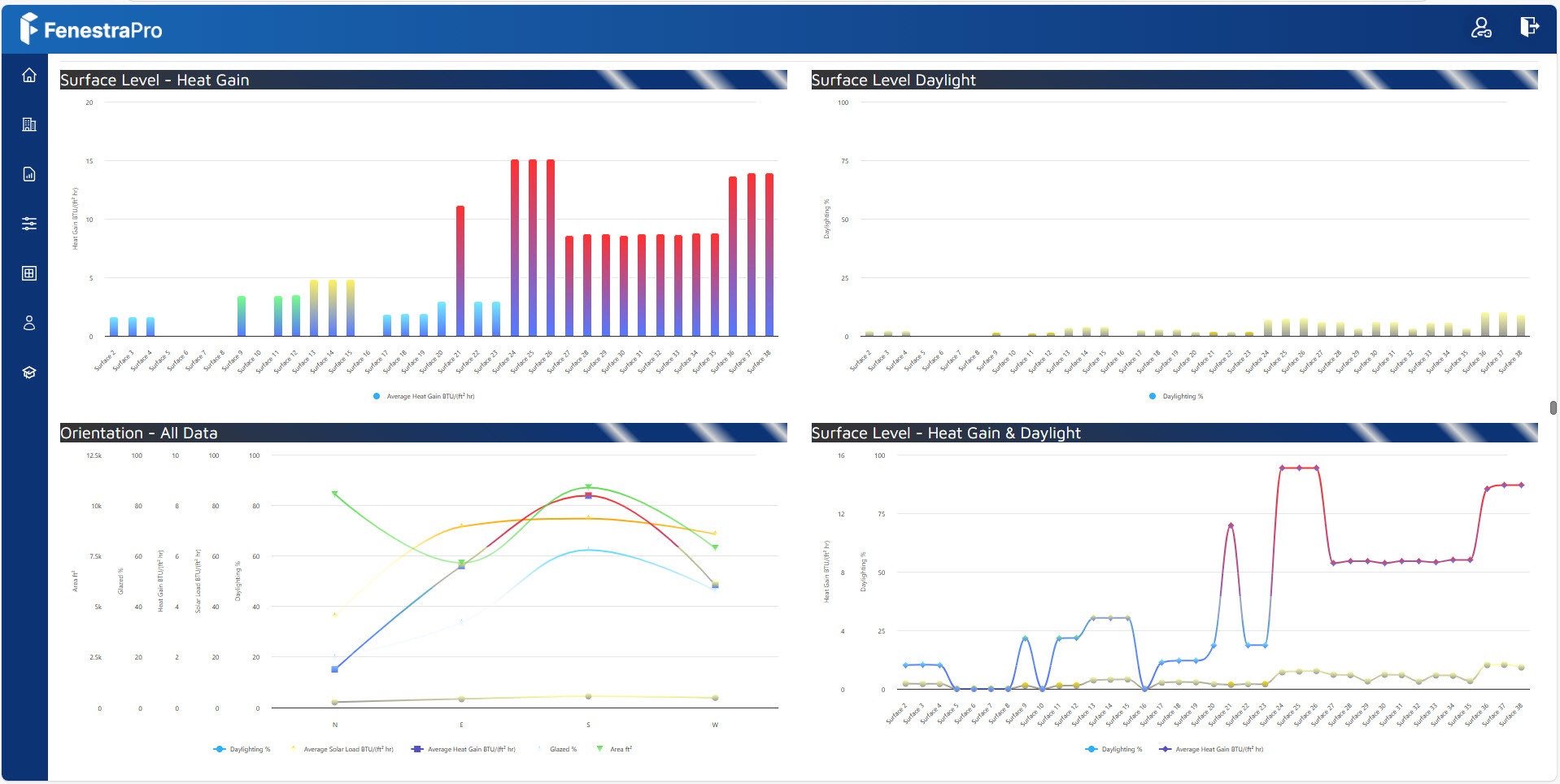
This area allows a HTML Report to be exported to your Account area. A browser window will open to display the report.
If you are not already signed in, you may need to sign into your online FenestraPro Account to access the report.
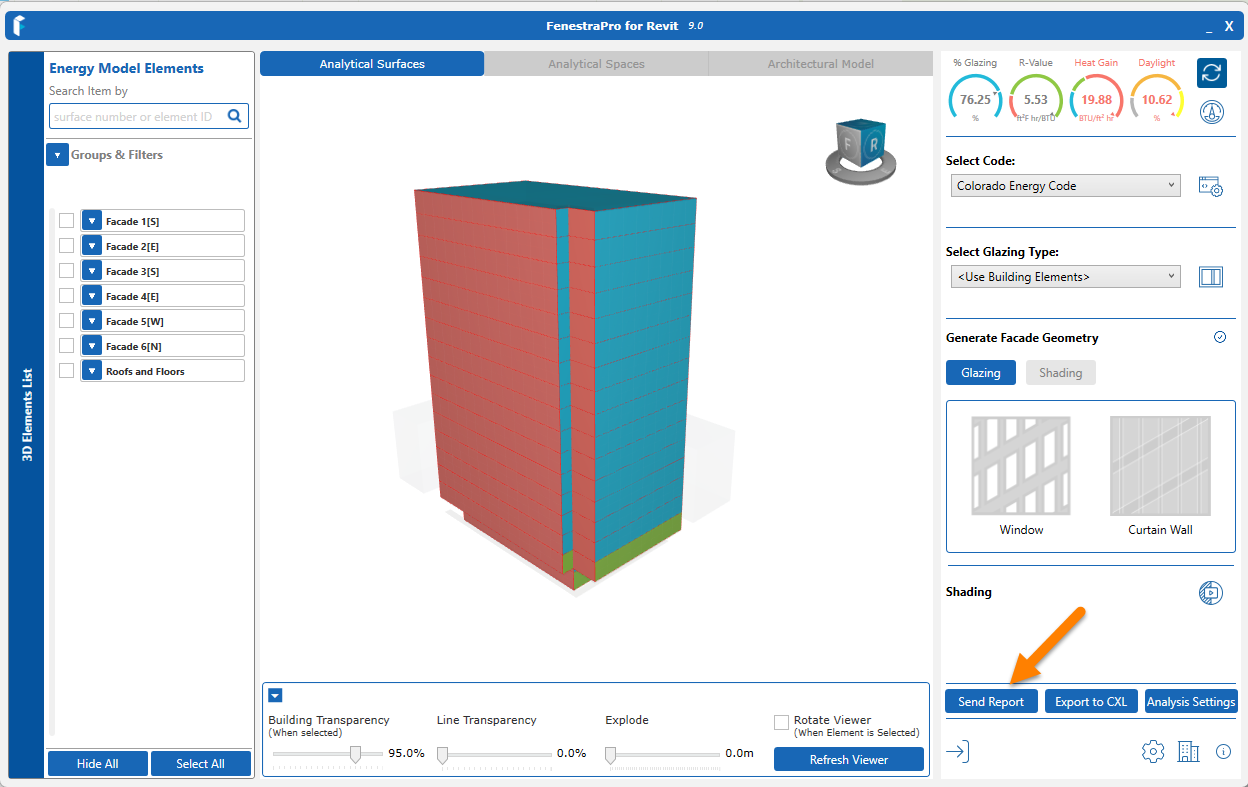
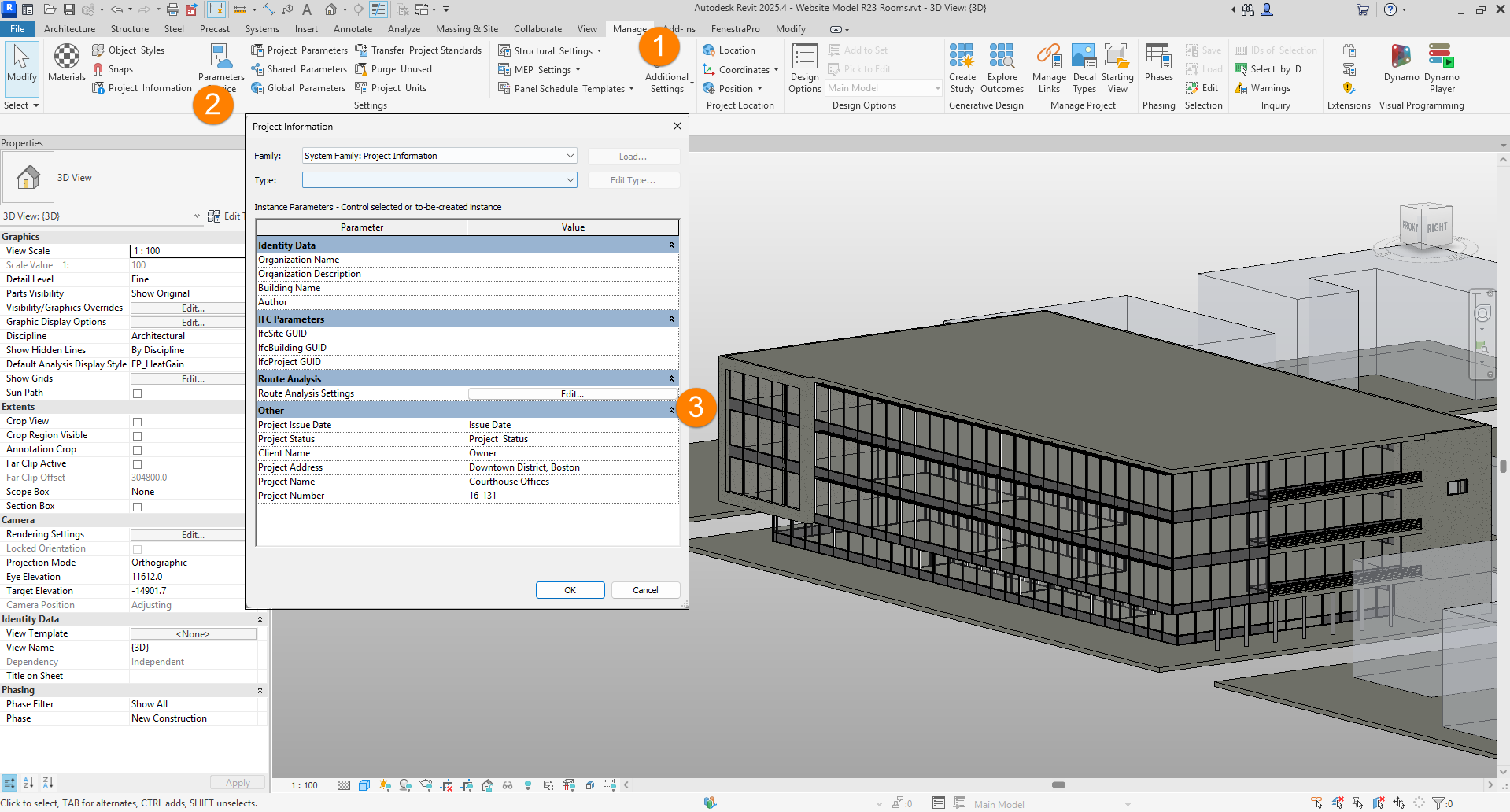
Note: Some project information needs to be present in Revit for a Report to be sent to your Account area. Please check under the Manage tab – Project Information on the Revit menu that there are some inputs for the following fields in the lower section: Project Issue Date, Project Status, Client Name, Project Address, Project Name and Project Number.

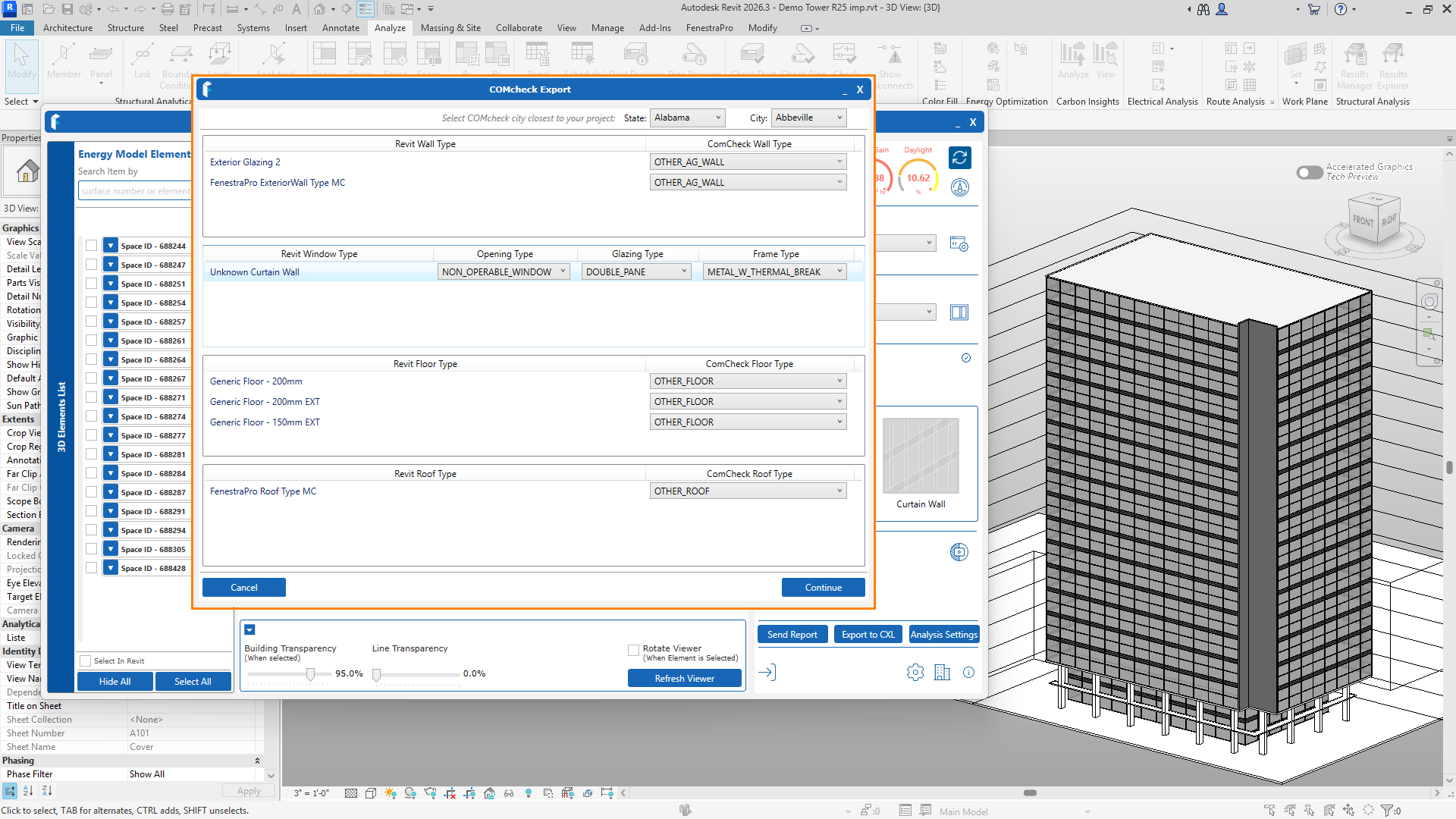
Export to CXL
This button will export element areas and properties to a file which can then be imported into third party compliance tools. This is explained in more detail here.
Shading Animations
This area displays shading effects from surrounding buildings (if modeled), self-shading and shading from shade devices for selected times and dates during the year. You may play the animation, use the drop-down list of dates or use the slider to select a date to review. Clicking repeatedly on the fast forward button will increase the playing speed. An image capture may also be taken and saved using the camera icon. Surrounds modeled as masses in a linked file will also work for shading calculations.

These features are examined in more detail in their own articles later; Reports, Export to CXL and Shading Animations.

