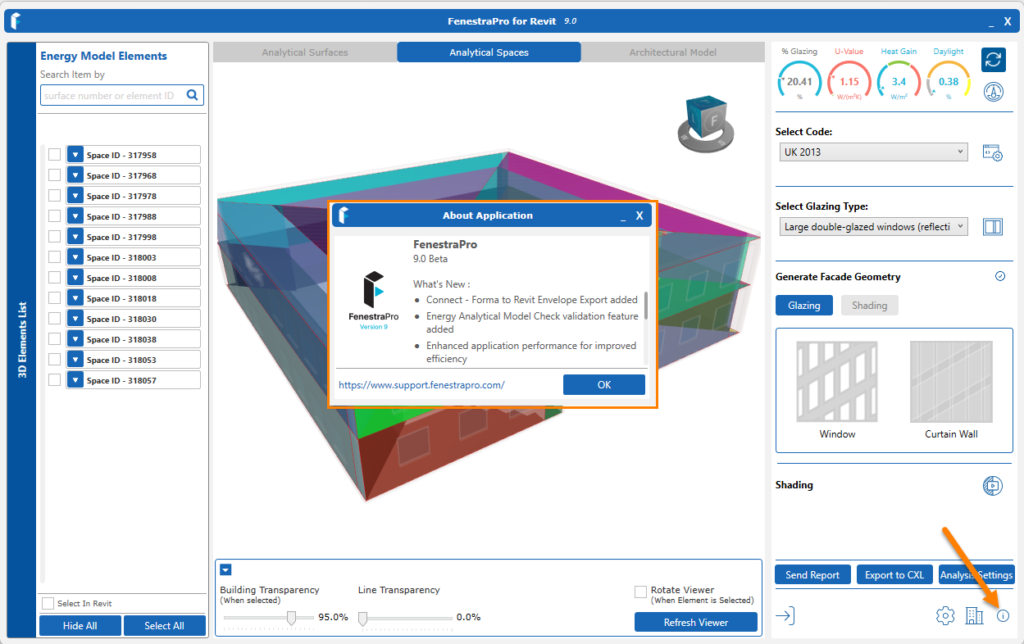
FenestraPro may be found on the Revit menu and may be launched from there. Please Note: once one application has launched, it is not possible to open another application at the same time.
The EAM Check tool provides a means to audit the model and diagnose issues and is recommended when starting to analyze a project. This will advise on energy model issues and provide options to adjust settings and element properties.

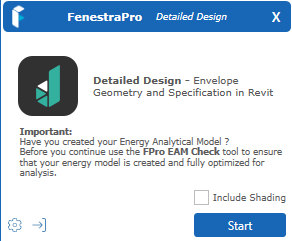
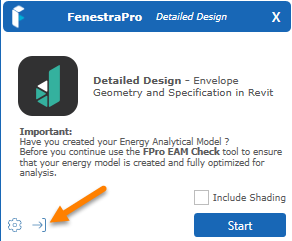
The Splash Screen displays as shown below. There are also buttons provided for Settings and to Sign-out.
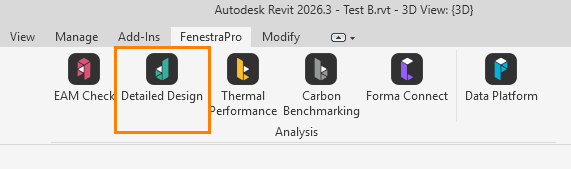
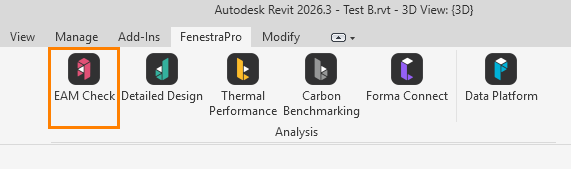
The Thermal Performance tool will open directly into a separate application. For advanced glazing analysis, use the Thermal Performance tool (for detailed panel/window materials analysis). This tool is covered in more detail in this Section


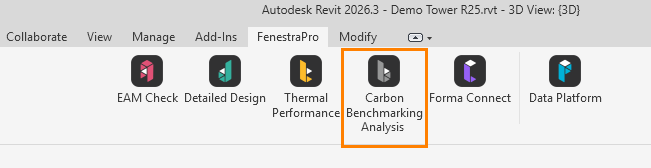
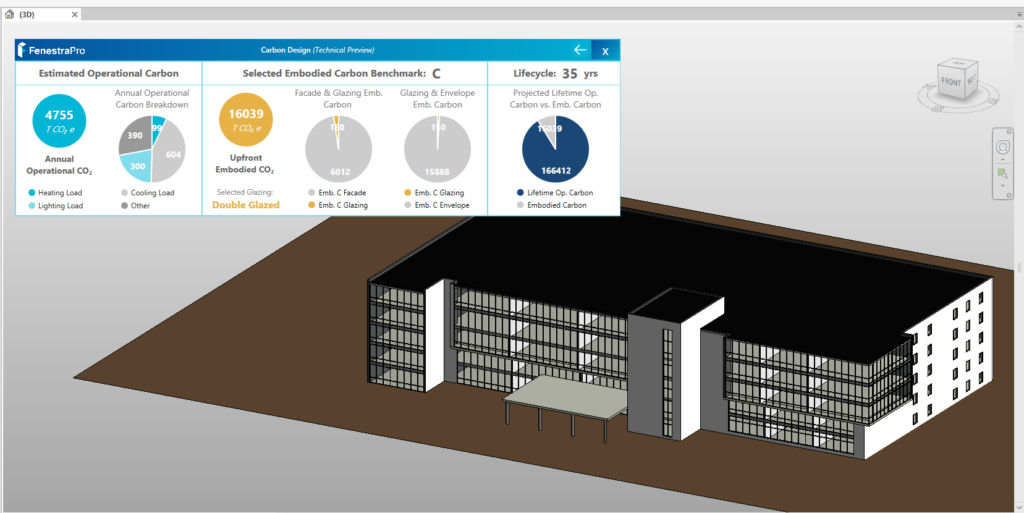
The Carbon Benchmarking tool will open directly into this application to advise on embodied and operational carbon in the model.
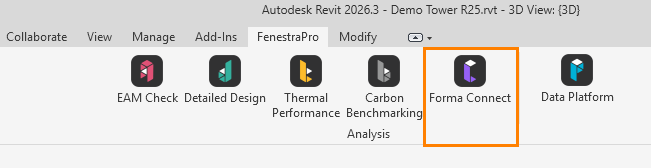
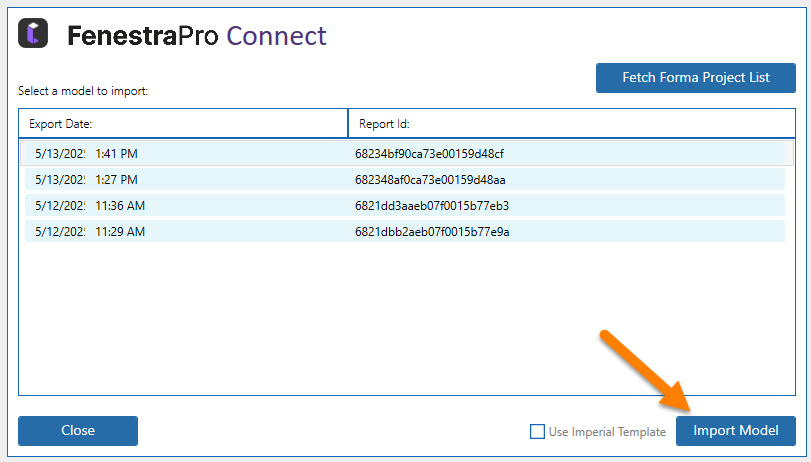
The Forma Connect tool provides a means to import a Forma project with glazing and shading settings applied using the FenestraPro Forma extension – Envelope Analysis.
The Data Platform button tool will take you to your online Account area or where you may sign-in.

Sign Out
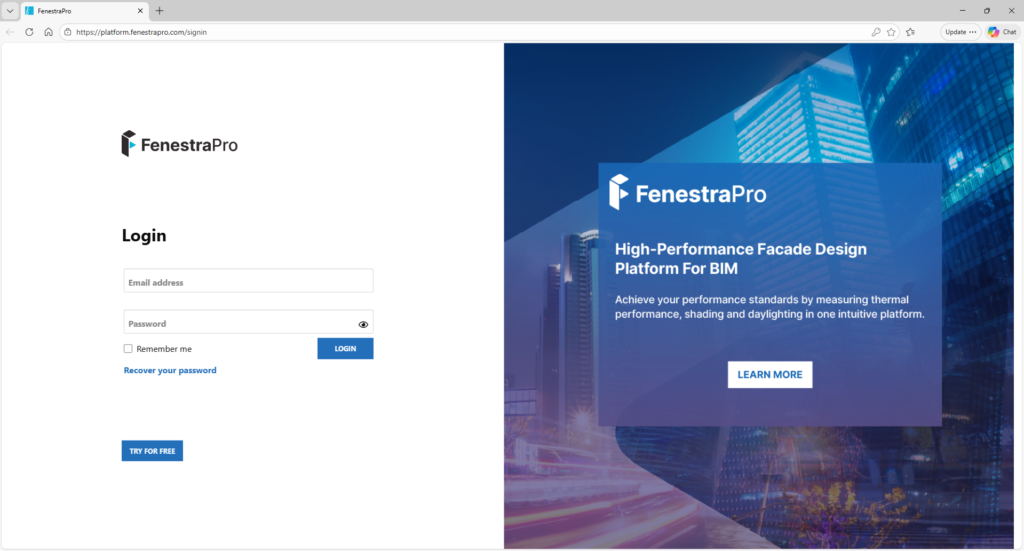
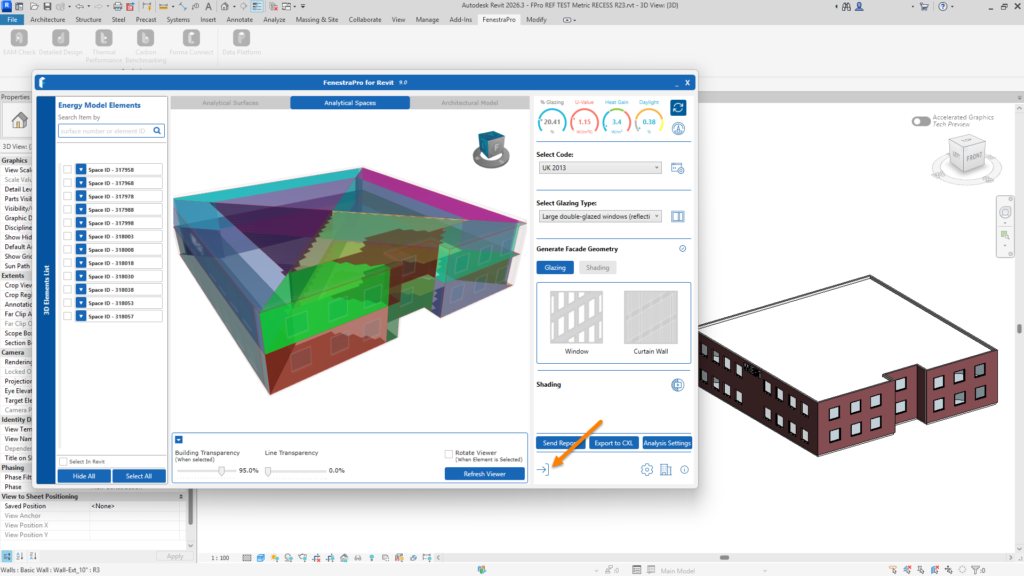
The splash screen and main application windows have buttons to sign out of your account. You may do this if you are leaving your workstation for an extended time or if you have been assigned a new license key etc.

User Support
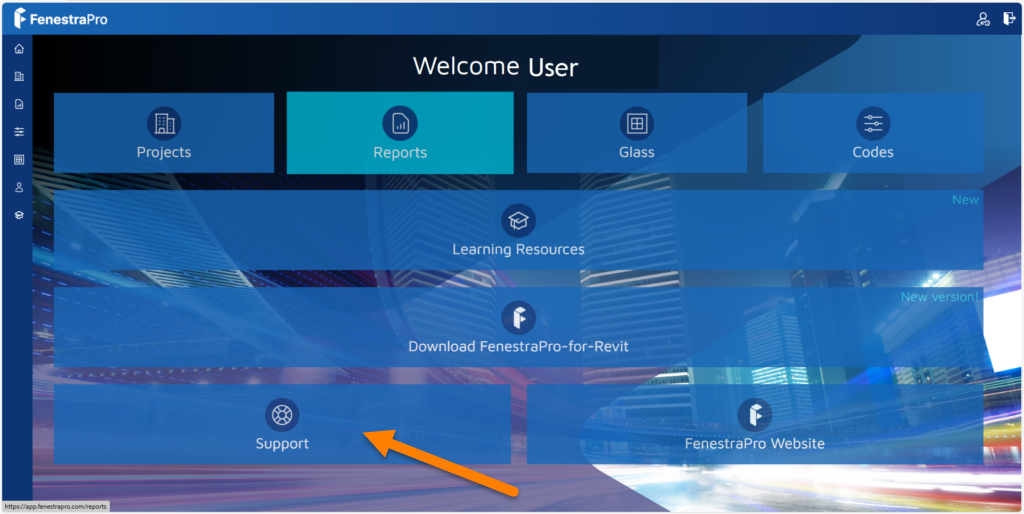
Links to the support site can be found in the ‘About’ window and in your User Account online.
Toolbars & Settings
Toolbars and icons allow display settings to be changed and features to be accessed.
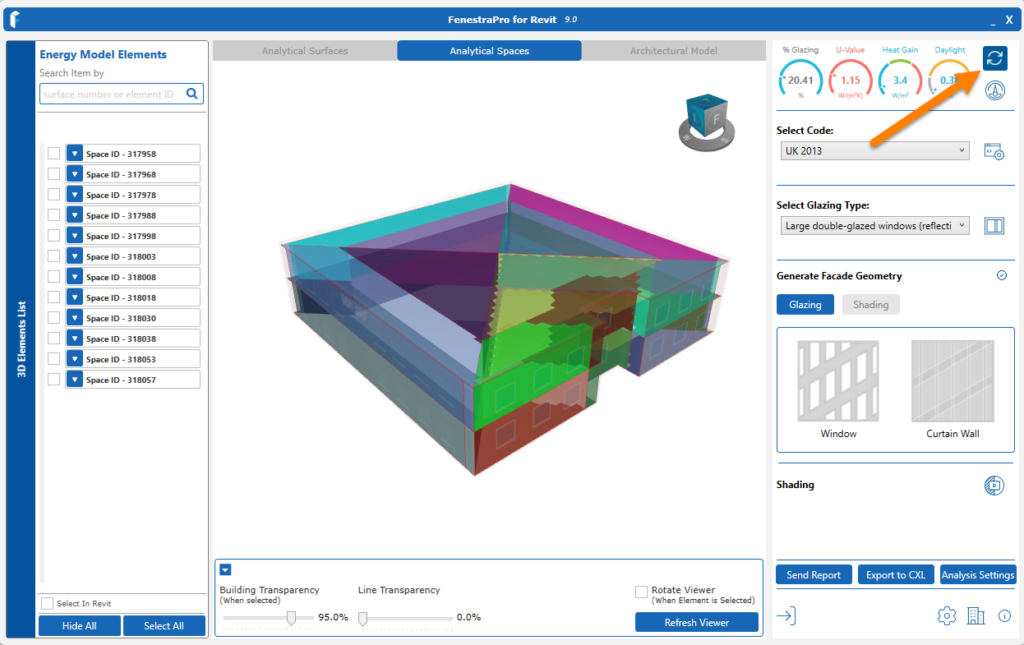
Refresh
This button refreshes results for the project if changes have been made to the model or settings such as glass types, element properties etc.
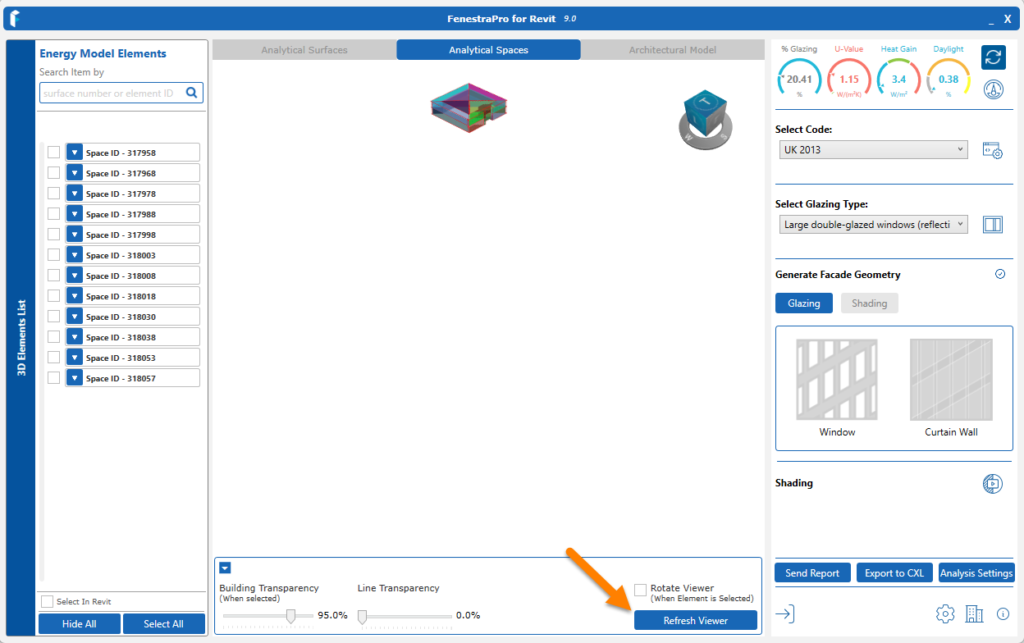
Refresh Viewer
If the model gets out of range of the viewer, you may re-center it by using the Refresh Viewer button.
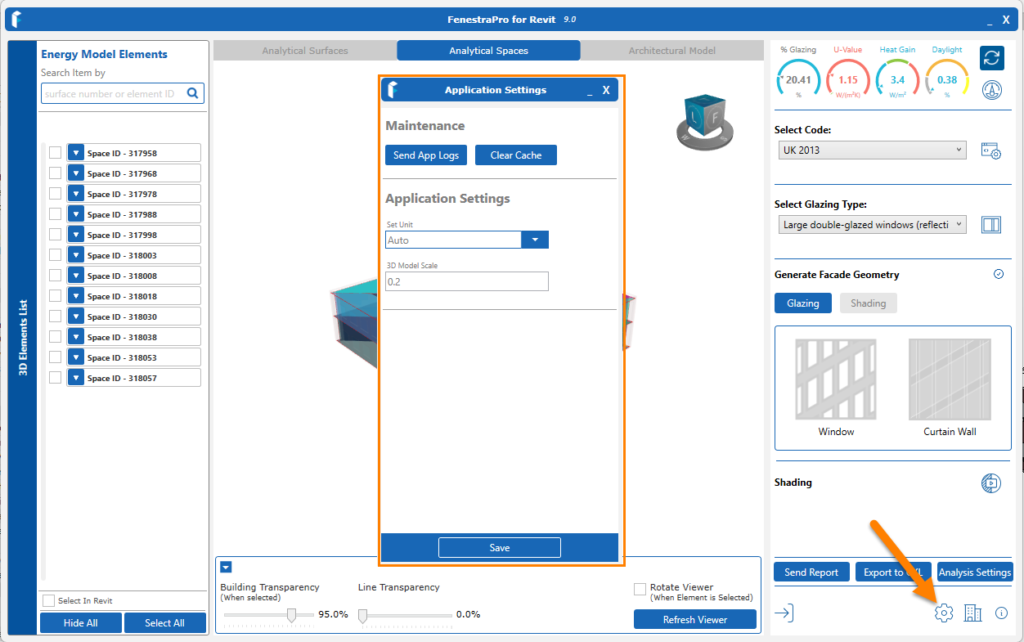
Settings
This window provides an area to adjust settings for unit preferences, clearing cache files (previously saved results) and sending log files in the event of issues etc.
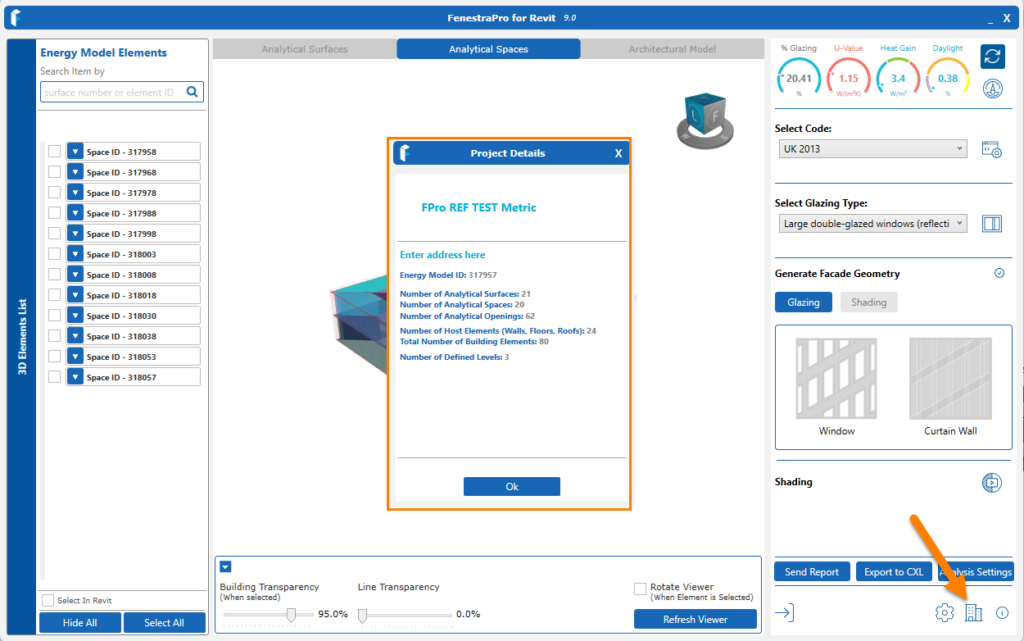
Project Details
This window gives details of analytical surfaces, spaces, openings , levels and host walls.(Note: Other windows cannot be open while this window is open).
About
This window provides details on the latest improvements and a link to the Support Site. (Note: Other windows cannot be open while this window is open).