
Quick Start Guide
If you have requested a Trial license (for FenestraPro for Revit) , you will receive a confirmation email with your log-in details. Download and install the Revit Add-in and use the log-in details that you created to start your trial. Note: Trials provide fully-functional, free, 30-day access to the application and begin on the date of the confirmation. If you wait 7 days to log-in, you will have 7 days less for the trial assessment. We understand that sometimes the trial may expire before you have a chance to use it fully. In this case please contact us to request adjustment of the expiry date.
If you have been added to a license, you will receive an invitation email. Using the links provided, Create an Account with your email and create your own password. This will allow you to save reports, create custom templates for future reports and manage your profile. If you are an Administrator for your license, you can also invite further Users (if your license allows) and manage machines where the software is installed. 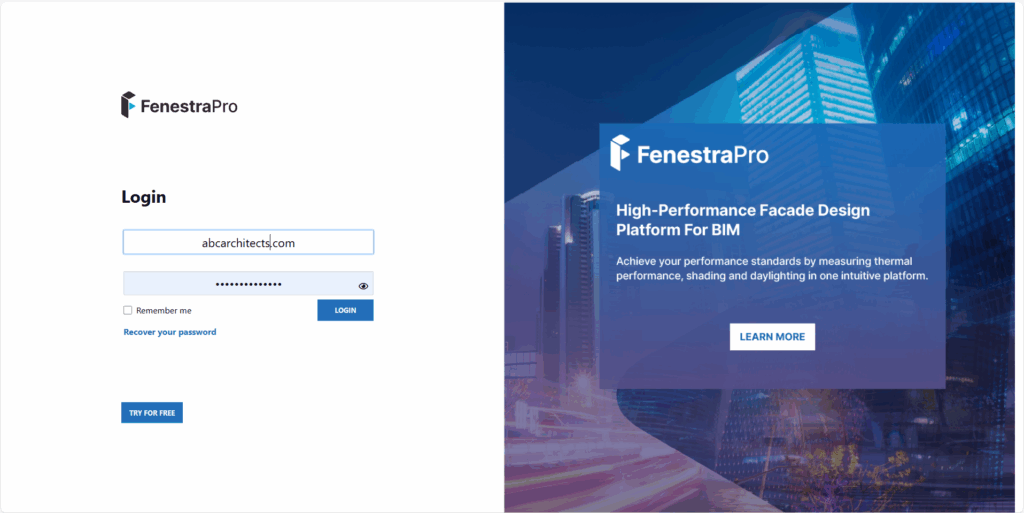
You should then download the latest version from here and (once all Revit sessions have been closed), install it by double clicking and following the instructions on screen. You may need assistance from your IT Department/Manager in some cases where permissions are restricted around installing software.
- Install FenestraPro on your machine.
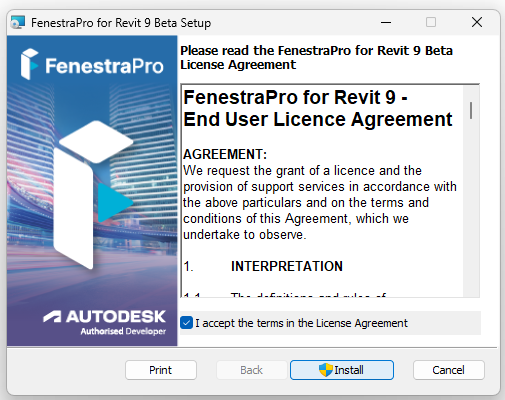
2. In Revit, launch one of the tools on the FenestraPro menu.

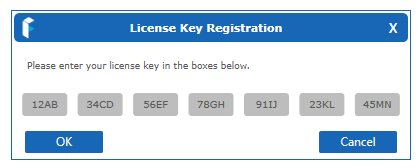
3. If this is the first time that you have installed the software, you will be asked to enter the License Key that was provided to you by FenestraPro. This will vary for each license, please contact us if you did not receive this.
Note: the licence key shown below is an sample only and will not activate your application.
4. Sign into your account using the password that you created. You may click ‘Stay Signed in‘ to avoid having to do this in future sessions.

5. It is recommended to use the EAM Check tool first (if you wish to check the model conditions and possible issues).
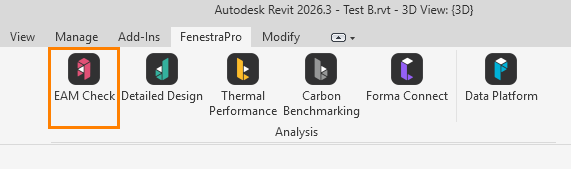
Otherwise, you may open the Detailed Design tool if you have a detailed Revit model.


