
An Energy Code should be selected as a reference for your project. This may be from one of the suggested codes in the dropdown list, a custom code that you have created or as a last resort, a default code provided by FenestraPro.
The Total Building Performance is also displayed which is an average for the all the building envelope elements (roof, ground floor, walls and glazing).
Note: If you change the selected code for reference, you should use the Refresh button to update the application and the new compliance status.
Detailed thermal properties may be assigned to elements in Revit by defining family assemblies in Type Properties (layers, materials and properties, thicknesses etc).
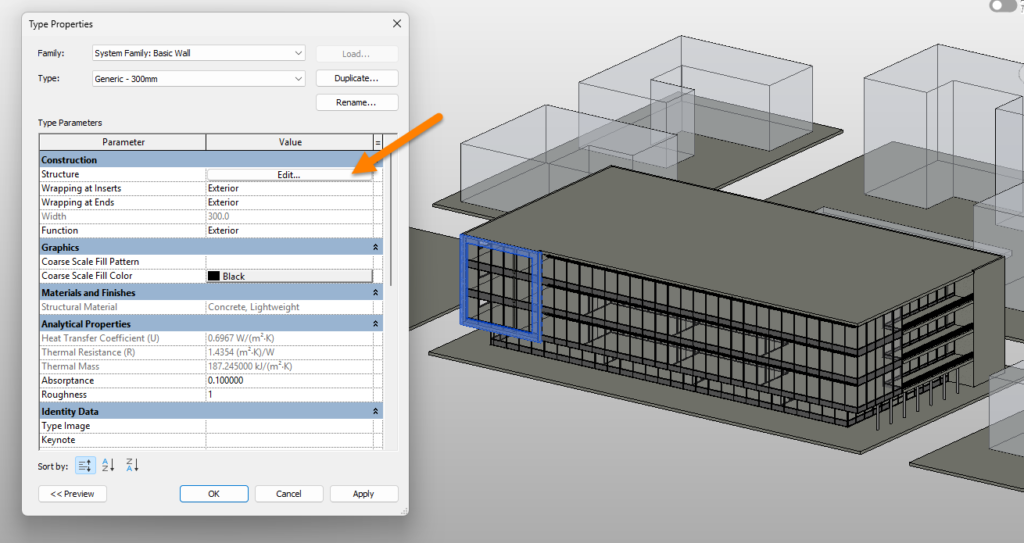
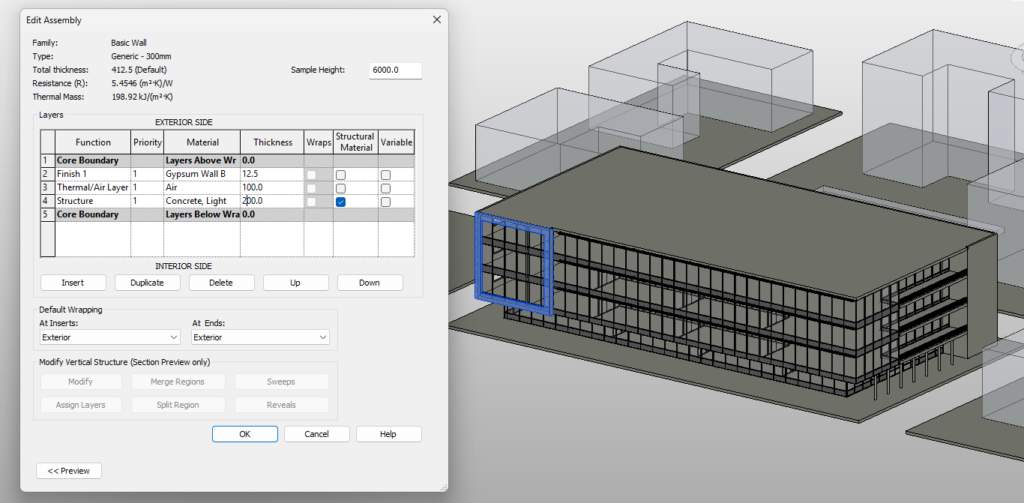
If analytical properties have not been defined in Revit, schematic types may also be used for elements and these will be read also. Schematic overrides are automatically turned on when you launch FenestraPro but the Revit setting to use ‘Detailed Elements’, whether on or off, is not changed (it will remain as it was). You can also control this setting from the application if you wish.
Note: All elements with analytical properties or using schematic values are included when calculating compliance. Even floors which are used externally as balconies, shading devices or hard surfaces, garage/workshop roofs, roof structures without walls, freestanding walls etc are included. Use of these elements in the project should then be noted if they are significant.
There are several ways to achieve compliance with the selected Energy Code (assuming that the code values are to be the targets and this is not to be changed):
- define a schematic type with a better performance for that element (a lower u-value if metric or higher R-value if imperial)
- the element assembly may be edited in Revit to improve the thermal performance (layers, materials and properties, thicknesses etc
- set user defined properties for an element in Revit to match the target values
The target values from the selected Energy Code are compared to the current values defined for the model elements. If they do not comply, an indicator is displayed in red font.
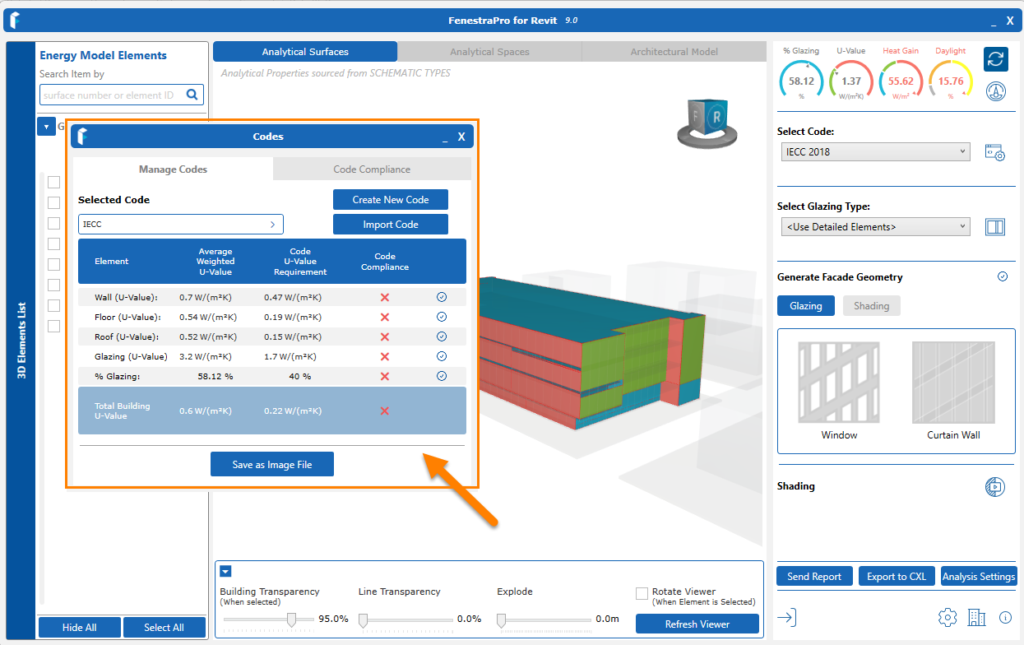
You may also save the compliance status as an image by using the option provided ‘Save as Image File’.

