
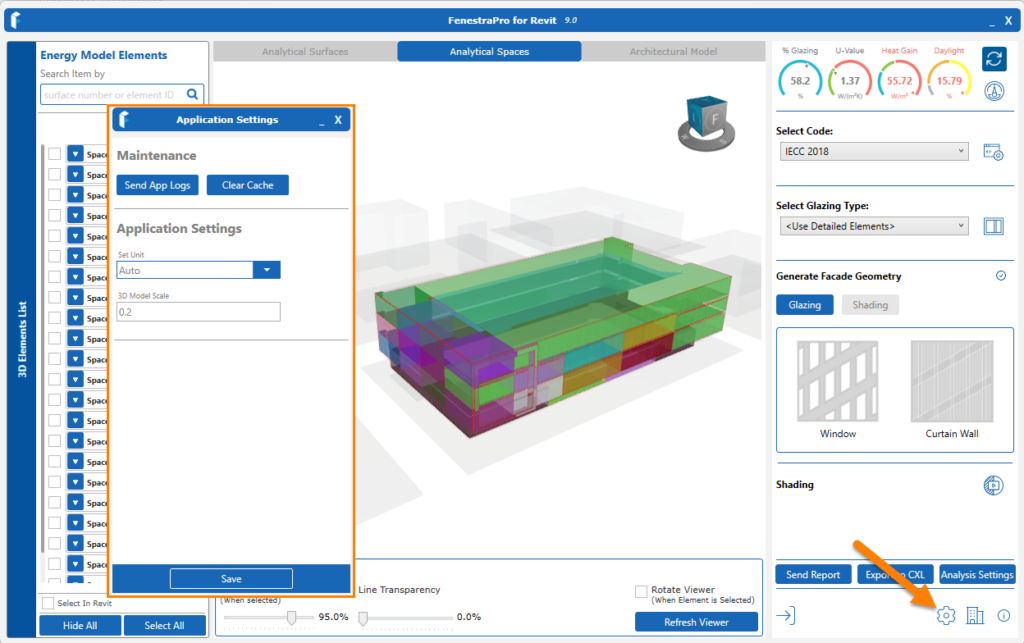
To help us continue to improve our software, Error Logs are generated automatically if any issues are experienced with FenestraPro. Users can send these to us, using the Settings button in the toolbar at the bottom of the main window. Click on Send App Logs and fill in the description of the issue if you wish.
When you send an error report, recent log files are also sent to us which help us to understand when the event occurred and what is the cause of the issue. Logs may also be requested by our support team and if you are unable to open the application, these files may be found in the relevant folders:
For Detailed models: C:Users\<YourName>\AppData\Local\FenestraPro_Performance (Revit 2023/2024)
C:Users\<YourName>\AppData\Local\FenestraPro (Revit 2025 / 2026)
You may copy and paste these files into an email to us if requested.

Note: The App Data folder in Windows may be hidden on your machine and you may require help or permission from your Administrator to access this. Changing the settings in the ‘Folder Options’ of Windows, may also allow you to view hidden files and folders on your machine.
Please see the FAQ’s Section below which has typical issues and suggested solutions which might be helpful. There is also a Section on this Support Site for Known Issues.
Contact Us
General Technical support for FenestraPro can also be provided by contacting support@fenestrapro.com.

