
The Model Viewer displays the project where elements, surfaces and spaces may be highlighted. There are 3 tabs at the top of this window:
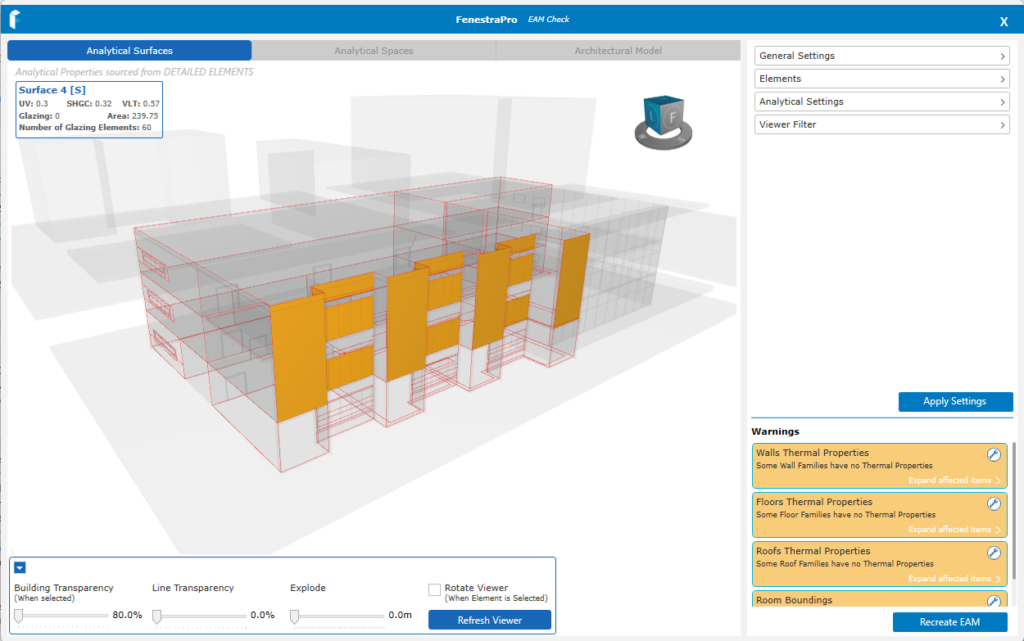
- Analytical Surfaces
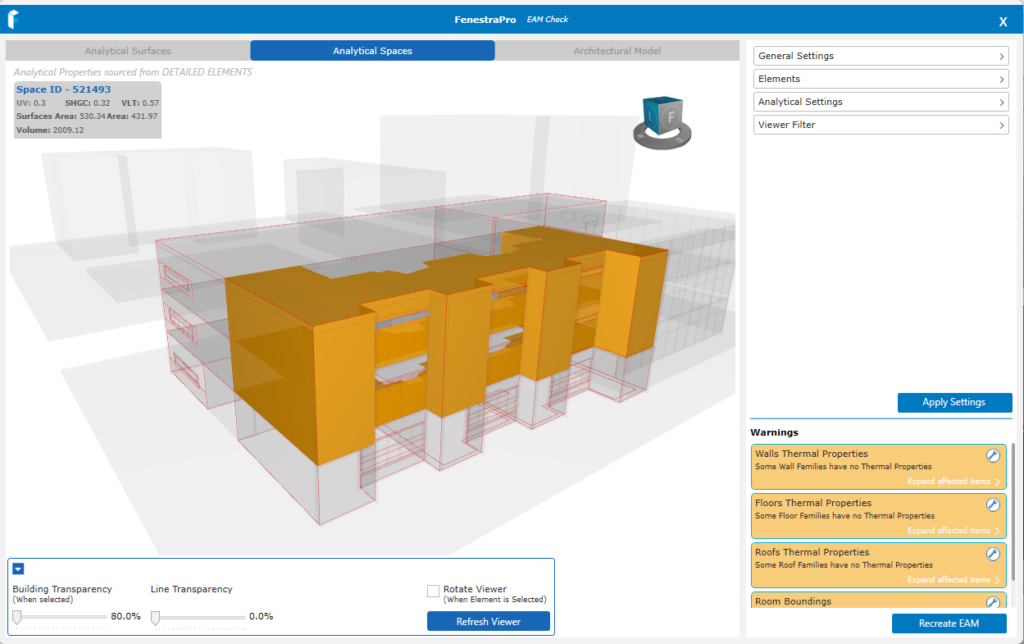
- Analytical Spaces
- Architectural Model
The controls will adjust depending on which tab is selected.
surfaces
Here you may highlight Analytical Surfaces in the viewer by hovering over areas and clicking if you wish. Details for the average properties on the Surface will display as well as the Glazing Percentage, Surface Area and number of glazing elements. If details do not display as expected, consider the settings for reading detailed or schematic properties as described here. An indicator will also display in the viewer if properties are sourced from detailed or schematic values.
Spaces
Here you may highlight the Analytical Spaces in the viewer by hovering over an area and selecting if you wish. Details for the Space ID, Total Surface Area, Average element properties (U-value/R-value, SHGC and VLT) and Space Volume will display in a properties panel in the top left corner or the Viewer.. You may select one or multiple spaces.
An indicator will also display if properties are sourced from detailed or schematic values.
Spaces will be divided depending on internal wall divisions, room bounding conditions and other model conditions. These derive from Revit’s Energy Model. Adjusting the Revit model can change the configuration and number of Analytical Spaces.
Architectural Model
Here you may review model elements and warnings. If thermal properties are missing, warnings will display beside an item in the list. The list may be expanded to review details.
Issues may be resolved by returning to one of the other views (Surfaces or Spaces), reviewing warnings and options:
- A default glazing type may be assigned to elements where properties are missing
- Schematic values may be used for elements which do not have detailed properties
- Under ‘Elements’, settings for schematic types and related settings can be modified
- Room Bounding issues can be resolved by modifying this setting
Note: Issues such as gaps in the enclosure, element functions cannot be resolved using the application as it is not possible to prescribe that these conditions are incorrect or should be modified. Issues here can be highlighted and visualized in the viewer however as a guide for the user to make decisions.
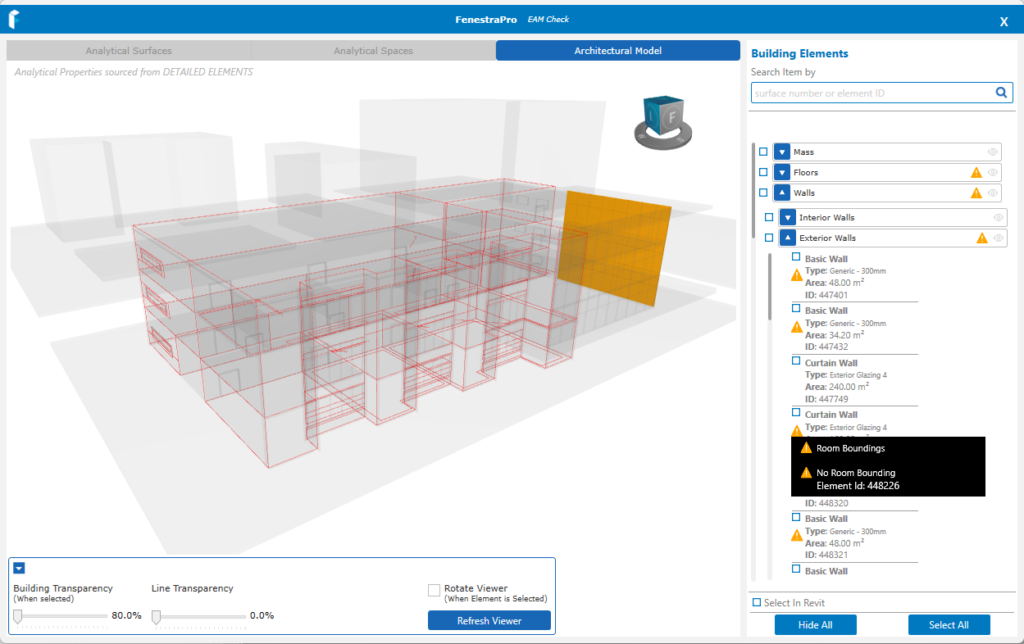
You may also search by Revit ID to check a specific element and then find this element also in Revit using this reference.

At the bottom of the viewer are controls to modify Building Transparency and Line Transparency to adjust how the model displays in the viewer. Refresh Viewer will recenter the model if it has been rotated or orbited and cannot easily be seen.

