
FenestraPro can use various options to identify properties and use these values for calculations.
- Detailed Analytical Properties
- Schematic Types
- User Defined Properties
Detailed Elements
Revit has a setting that will determine if detailed element properties are to be used. This is found in the Advanced Energy Settings under the Analyze tab. This setting will supersede any other overrides for schematic types/conceptual types etc.
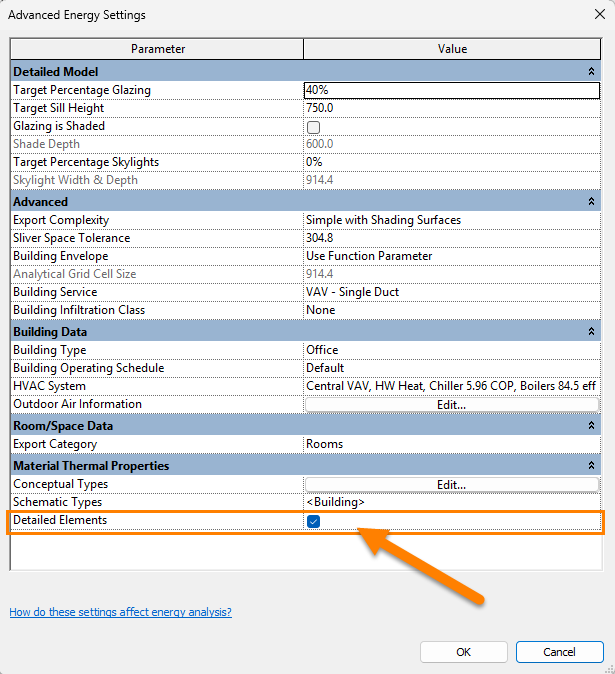
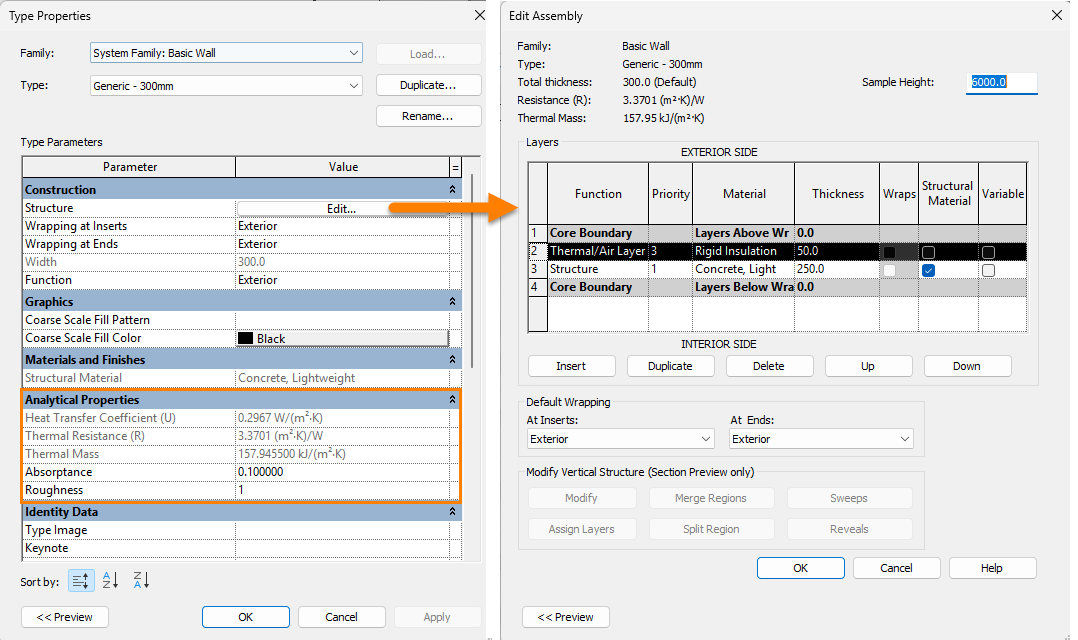
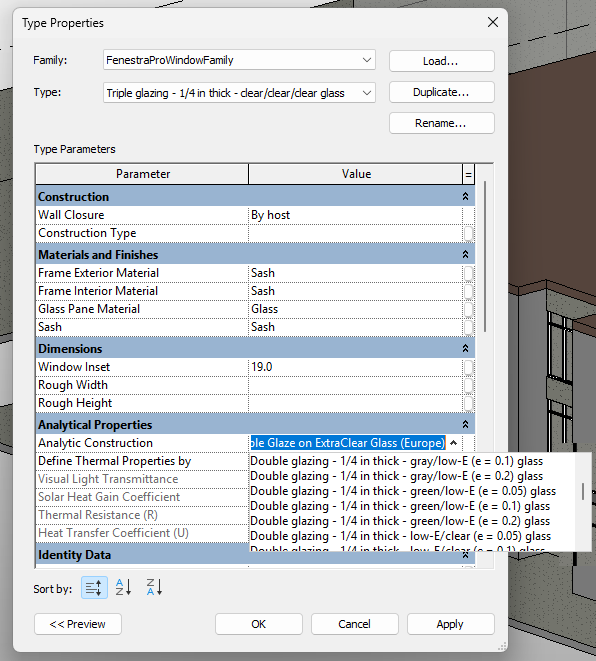
If this setting is turned on, Revit will use the analytical properties that have been defined for elements. These can be reviewed under Type Properties/Edit Type. Each family (Roof, Floor, Wall, Window etc) may have properties assigned.
For solid elements (Roofs, Floors, Walls), properties are defined by:
- assembly layers
- thicknesses of layers
- materials used for each layer and thermal conductivity of materials.
For glazed elements, properties are defined by selecting an entry from a dropdown list of glass types.

Schematic Types
If no analytical properties have been set, Schematic Types may be used in Revit as a backup providing their override setting has been turned on. Schematic Types are the construction types in Revit. You may define the default entry to be used in the event of detailed properties not being present. You may also ignore analytical properties and only use schematic types if you wish.


Each category has a dropdown list of construction types where you may select your preferred entry and associated properties. These are in effect, notional types which can be used as placeholders until specific constructions are decided. Override boxes are provided for each category. These may be checked if you wish to use a schematic type. When the Detailed Design tool in FenestraPro is launched, it will set these overrides as a backup so that if analytical properties are missing, elements will always have some properties.
Checking a schematic override box will never take priority over analytical properties if they are present and you have prescribed that Revit should use these. Schematic Types are only used as a backup.
It is possible that the ‘Detailed Elements‘ setting is checked but there are no analytical properties set. In this case, if the override is on, the schematic type defined will be used.
Alternatively, you may also control the default schematic type using the application. A dropdown list is provided in the Detailed Design tool. Clicking into this list and selecting a type will define this as the default.

Note: Revit also has settings for Conceptual Types where these can be used as a last resort if no other properties exist (detailed or schematic). FenestraPro does not read these however and an explanation is not included here. Also, if ‘Detailed Elements‘ in Revit is tuned off (unchecked) by the user during a session while FenestraPro is open, the method of reading element properties displayed will not update (even if Refresh is used). The application will however swich to reading Schematic Types. Closing and relaunching the application will reset the method displayed. For this workflow to operate,there must be no open windows in Revit which can block the process of adjusting settings. Type Properties/Edit Type, Energy Settings and all other Revit windows must not be opened if you intend to switch between schematic and detailed properties. Any open Revit windows must be closed for the application to operate correctly. You may of course open Revit properties or Energy Settings (while the application is open) to review the current status but then close these windows before you use any of the features in the Addin.
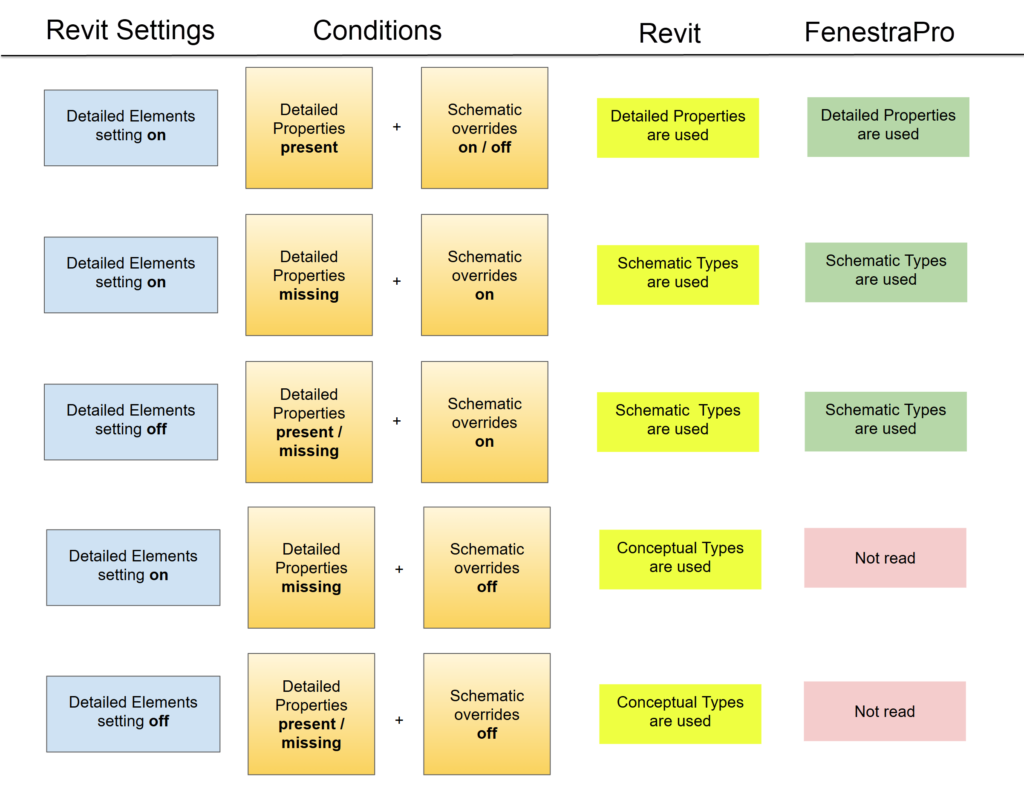
Summary of options in Revit
Depending on a combination of settings, the Energy Model will use the following properties:
Links to Autodesk guidance (Revit 2026):
User Defined
If User Defined properties are prescribed in Revit, these can also be read by FenestraPro for glazing elements. This option is only available for glazed elements (windows or curtain panels). This is useful if you do not know a specific glass type but have specific properties that you wish to use. These work on the same basis as above (they are read only if the ‘Detailed Elements‘ setting is checked (under Analyze – Energy Settings – Advanced (‘Other Options’- ‘Edit’)), otherwise Schematic Types are read if their overrides are on).


