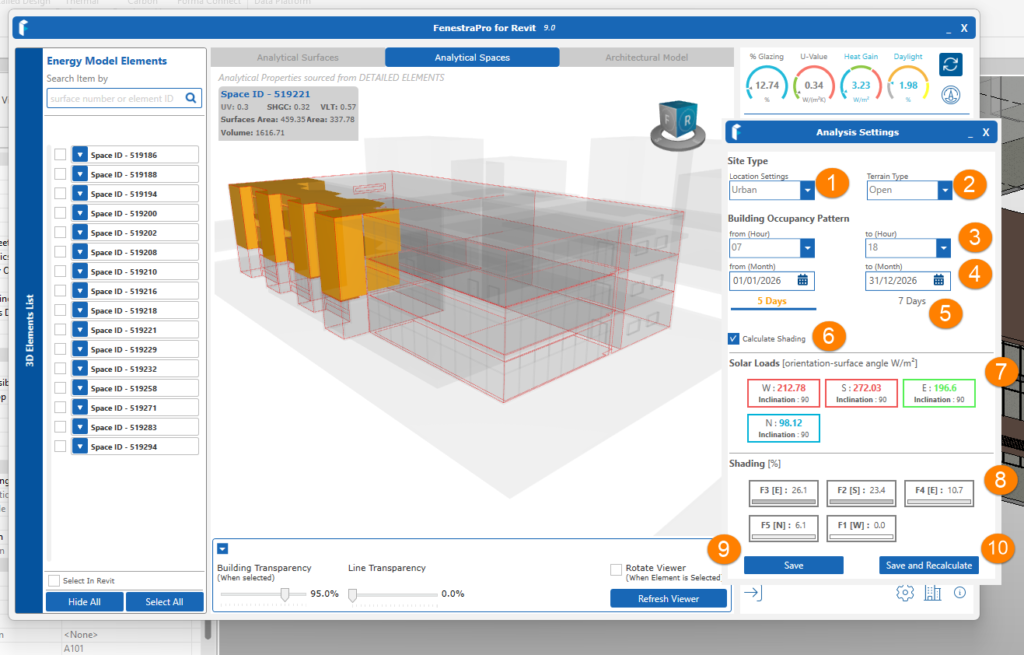
You may adjust various settings in the Analysis Settings area.
Terrain Type and Building Use/Occupancy settings, will affect the Heat Gain results. The Location Setting will affect the Daylighting results.
- Location Setting – this will affect the maintenance factor for Daylighting (Urban =0.92, Suburban/Rural = 0.96). This relates to typically how clean the glass is in this location.
- Terrain Type – Choose between Open, Depression, Sea/Lake, City, South Incline, West/East incline, Valley, South Valley Side, West/East Valley Side or Summit.
- Building Occupancy Pattern – these are the occupancy hours for the building and are currently based on a default but may be adjusted and will affect the average results. If the specified range is over a shorter period during the day, the Heat Gain results will typically be higher.
- Months in Use * – months or dates during which the building is occupied. One single date may be selected or a range of time between specific dates.
- Days in Use – days that the building is occupied (5 or 7 days a week).
- Calculate Shading – if there is significant self-shading or shading from surrounding objects, turn this on to include shading results. Note: Daylighting results will always factor in shading effects even if it is turned off.
- Solar Loads – results for radiation on building orientations. From these results, Heat Gain for spaces is calculated.
- Shading results are displayed here after the calculations have completed.
- Save the current settings that were defined.
- Save and Recalculate using the current settings. Note: This will not generate a new energy model in Revit, only recalculate using the current energy model. If the model geometry has been changed, a new energy model is required in Revit. This is required if model geometry is modified, elements are added/deleted, links are imported, design options are used etc.In this case, you can save the settings but use the Refresh on the dashboard to get a new energy model and new results.
* Note: Currently dates need to be selected within the same year rather than spanning across two or more years. Dates outside the current year will not get solar radiation results. It is possible to get two separate ranges of dates within the same year by getting separate results for one set of dates and then another set of results for a second set of dates (e.g. March to July and September to December). Reports may then be saved for each range of dates. It is not possible currently to get several ranges of dates in one calculation.