
The Glass Database can be found in the Detailed Design tool.
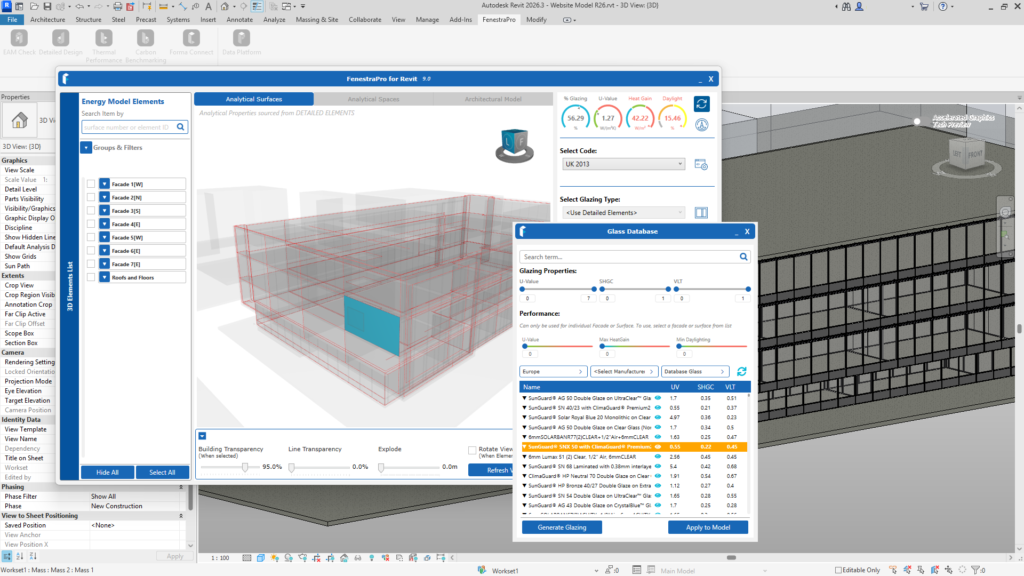
To apply a new glass type from the database, select a Surface(s) (with existing glazed elements) from the Façade Navigator in the application or from the Viewer.
Then select a glass type from the list and Apply it to the selections that you have made.
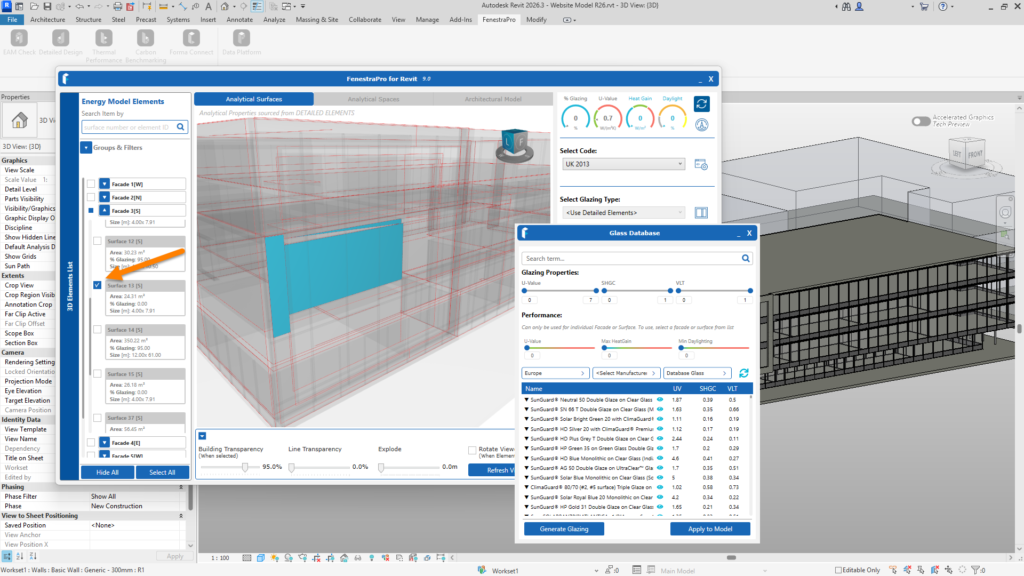
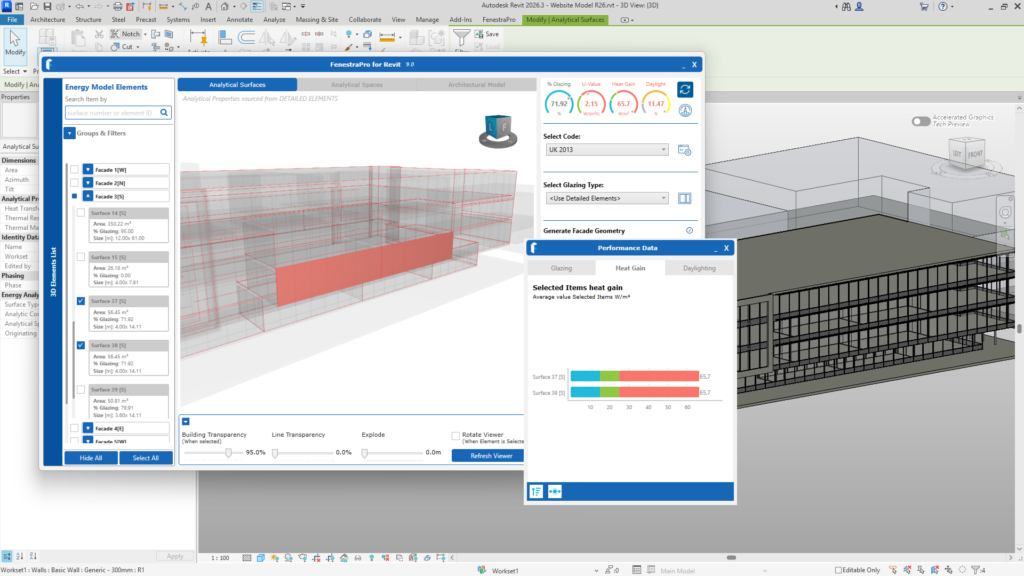
You may use either the Analytical Surfaces or Analytical Spaces tab in the application to make selections. One or multiple Surfaces/Spaces may be selected. The Charts may also be used to make selections on the model in the application viewer (one Surface or one Facade). Multiple Surface selections are not possible from the Charts but if these are done using another method (using the Viewer or Facades List), the Charts will also reflect these selections.
Once selections are made, you may use the Glass Database to find a glass type to apply. When you apply, you will see further options (apply to all instances of these Revit families in the model or only apply to the selected Surfaces). These options are further explained below.
Note: A Surface may not always map exactly to a single wall in Revit (that Surface may also contain walls on other planes depending on how the Revit model is created (open plan arrangements etc)). If the model has areas with similar orientations and these are associated to the same analytical space, then these areas may also be part of a Surface even though they are on a different plane. This can often be simplified by using internal dividing walls to define additional spaces.
When you first install the application, the Glass Database will sync with Revit (extra glass types will be added to Revit’s internal list) requiring a one-time restart of Revit. Assuming that this has been done, if you then change glass types in the model using the application, new properties for that Surface will update the results on the application dashboard and will also appear in Revit’s Type Properties.
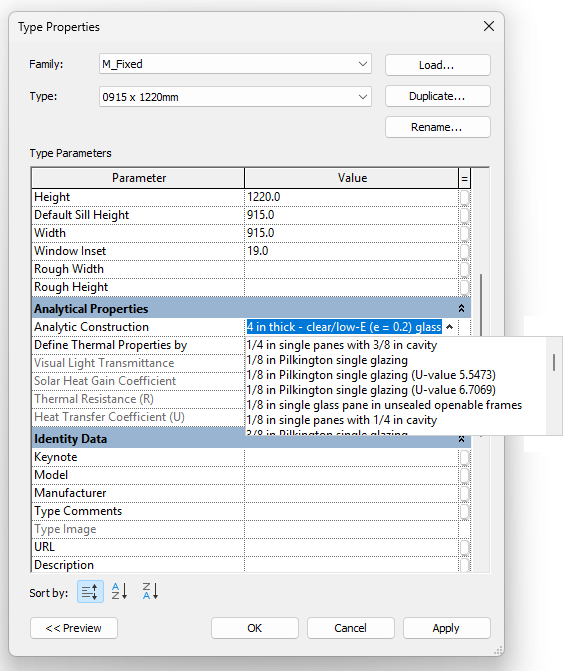
You may check if the new glass types have been added by selecting a glazed element in Revit and by going to Type Properties. Currently a selection of Guardian, Viracon and Vitro glasses are available in the application database. If only the default Revit list of glass types isavailable in the dropdown list, Revit may need to be restarted.
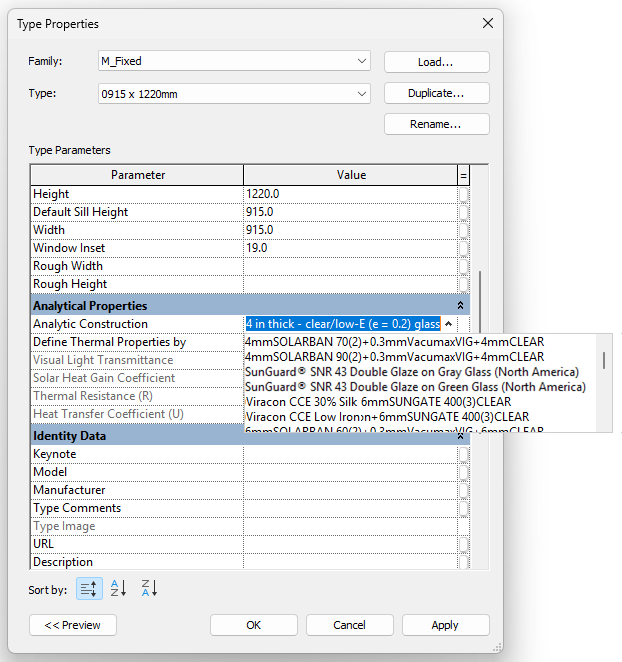
Note: It may also be necessary to restart Revit to import a custom glass type and add it to Revit’s internal list.
Revit includes an option under Type Properties – Analytical Properties called ‘Define Thermal Properties by’ parameter. The parameter should be set to Schematic Type for glazing properties to update correctly with new Glass Types from the database.
Note: If this area has been set to User Defined or Building Type, the application will not be able to change the glass type for the Revit element. Please ensure that this setting defines thermal properties by Schematic Type unless there is a specific reason to customize or override.

Note: If you wish to change a Solid curtain panel to a glass type using the Glass Database, first the panel type must be changed in Revit to a Glazed Panel type. Refresh the Dashboard to update the new model condition before proceeding.
If your Revit application is not installed on the C: Drive of your machine, FenestraPro may not find the path to operate correctly. Please contact us for more information and guidelines on how to set the correct path to Revit’s file structure if required.

