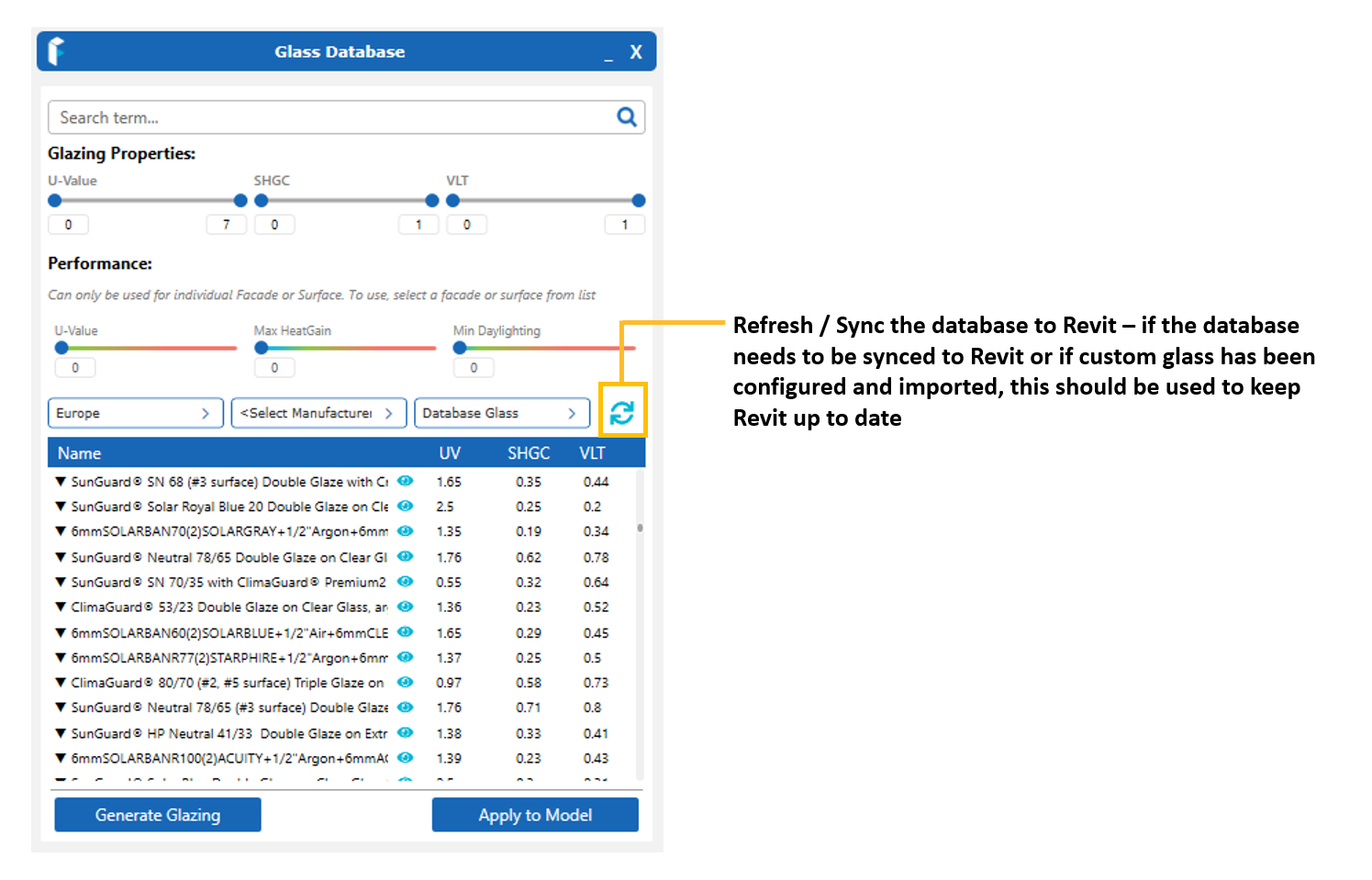
Sync
When the application is first opened after being installed, the FenestraPro Glass Database will sync with Revit. This will add new glass types to Revit’s internal list. It will be necessary to restart Revit one time to update. You may check using Type Properties if the list has updated. If not, please save your model and restart Revit.
There may also be an issue with access to this file and permissions to edit. You may require assistance form your IT Department if user permissions are restricted to modify files. During installation, FenestraPro will check that permissions are set correctly to allow the application to update this Revit file. If the Constructions.xml file is subsequently edited manually or substituted by another file, permissions may revert to read only, then updating of this file with new Glass Types will cease to function. This may be resolved by re-installing FenestraPro which will restore permissions to write to the file.
Security permissions may also be manually set for this file, this is an advanced process and is recommended to be done by those with sufficient expertise. Please contact us (support@fenestrapro.com) you need assistance or if editing permissions are restricted on your machine or if your Revit files are stored in a location other than the C: drive.
Custom Glass
When a custom glass type is configured and imported from a glass manufacturer, you will need to sync the Glass Database again with Revit to update. There is a button above the Glass Database to sync any updates. Save your model and restart Revit so that it can update its internal list of glasses.