
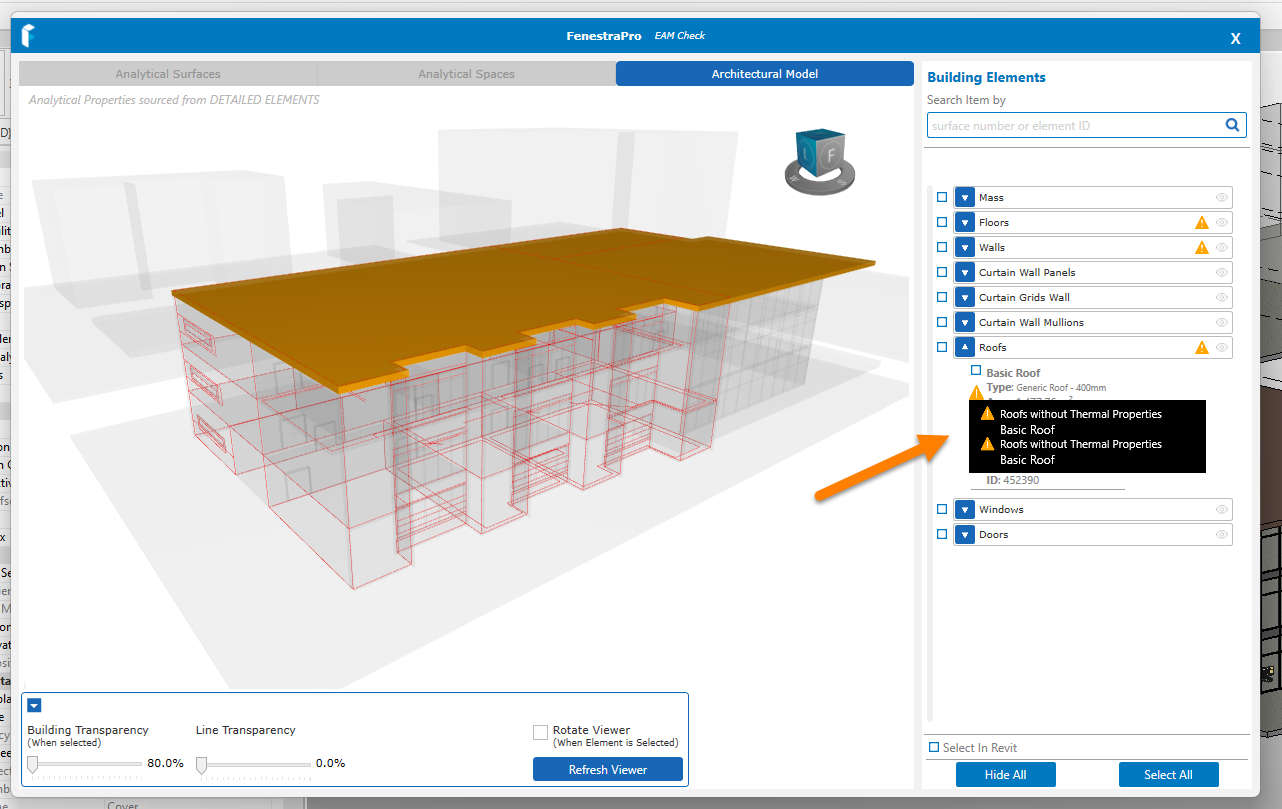
Thesemay appear in the EAM Check tool and are helpful indicators that elements do not have analytical properties. It may be that a door or window has no analytical property set. The warning indicator (icon) will appear beside an element family in the list. An ID will also be displayed. This is helpful to find that element in Revit as you may search by ID number. Thermal Properties may be set in Revit by using the Edit Type tool or you may choose to use schematic types as a backup temporarily and these can be used for calculations.
It is good practice to check that Revit’s Energy model is successful first and that there are no warnings in Revit. If there are warnings (under the Manage tab), try to resolve these first or make a note of these and look for these issues in FenestraPro where they may be options to resolve them (room bounding issues, missing properties etc) Glazing material, if assigned, should have the required transparency set in the materials browser, to be identified as glass.
Please refer to this Section above for information on typical modelling issues and recommended Energy Settings.
If you still experience issues, please contact us for support: support@fenestrapro.com